

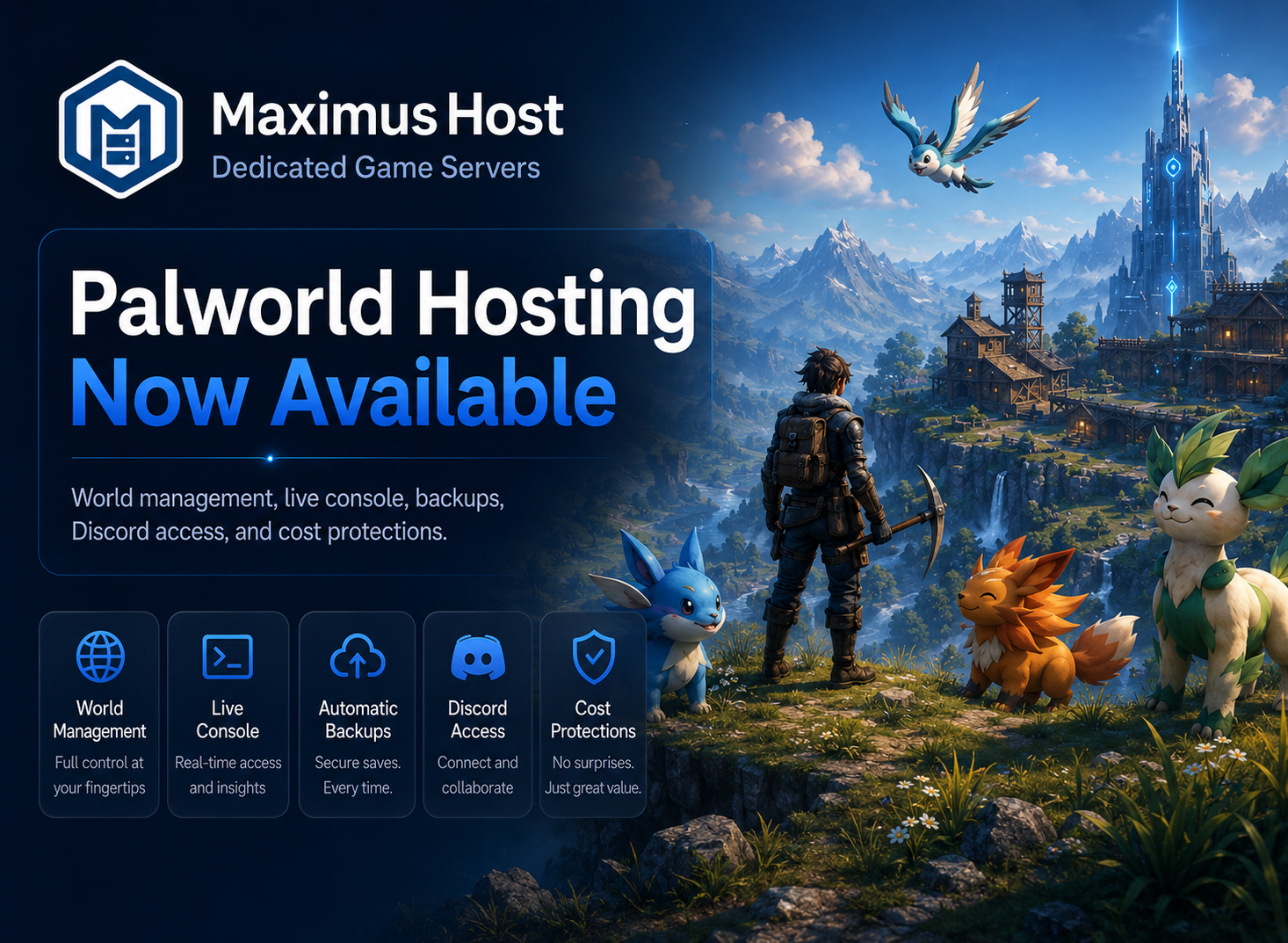
Palworld server hosting is no longer limited to Premium and Founder accounts. All MaximusHost users can now create and manage their own Palworld dedicated server directly from the MaximusHost control panel.
Whether you are hosting a private world for friends or operating a larger community server, the management panel provides control over your server, worlds, players, resources, backups, Discord access, and spending protections from one place.
Complete Server Control
Each Palworld server includes a dedicated management page where you can:
- Start, stop, and restart the server.
- View the current server status.
- Copy the server address.
- Customize the server’s display name and MaximusHost subdomain.
- Configure the public server name, description, password, and maximum player count.
- Mark the server as a community server.
- Generate a new player password automatically whenever the server starts or restarts.
The Overview page also displays current memory, CPU, and storage usage without requiring access to the underlying container.
Live Console, Logs, and Player Management
The Console page combines live server logs with Palworld administration tools.
Server owners and authorized users can issue supported commands for:
- Viewing server information.
- Listing connected players.
- Reviewing settings and metrics.
- Saving the current world.
- Sending announcements.
- Kicking or banning players.
- Removing bans.
- Performing a graceful shutdown.
The player panel displays currently connected players as well as previously known players. Available information can include total recorded playtime, and last join and leave times.
Player-specific controls make it possible to prepare kick, ban, announcement, and refresh commands without manually looking up identifiers.
More Than 100 Palworld Settings
The Properties page provides access to Palworld’s official server configuration through a searchable web interface.
Settings include:
- Server identity and description.
- Player and administrator passwords.
- Maximum players.
- Difficulty and gameplay rates.
- Guild and base limits.
- Death penalties.
- PvP and friendly-fire options.
- Pal spawning and capture settings.
- Resource, crafting, stamina, and experience rates.
- Networking and community-server options.
An Advanced mode exposes additional settings and their corresponding environment keys. Changes are written to the server configuration and take effect after the next restart.
Multiple Palworld Worlds
A single server can retain multiple Palworld save directories.
From the Worlds page, you can:
- Create a fresh world.
- Assign readable names to saved worlds.
- View world identifiers, sizes, player counts, and modification dates.
- Switch which world will load on the next start.
- Delete worlds that are no longer needed.
Creating a new world does not overwrite the previous one. This allows communities to preserve an older world while starting fresh after a major Palworld update.
Because characters, inventories, guilds, bases, and map progress remain connected to the selected world, players should move important Pals into the Global Palbox before transitioning to a new world when applicable.
Adjustable Resources and Live Usage
Palworld servers can be resized through the Resources page.
The panel shows:
- Assigned memory and virtual CPU.
- Current memory and CPU usage.
- Average usage over recent uptime.
- Peak memory and CPU utilization.
- Storage currently consumed by the server.
Server owners can adjust memory and CPU allocations as their player population and world requirements change. Cost previews are shown before updated resources are applied.
Schedules and Idle Auto-Shutdown
Servers do not need to remain online when nobody is playing.
The Schedule page supports:
- Weekly start, stop, restart, and backup schedules.
- Reusable schedule presets.
- Daily or selected-day backups.
- One-time and recurring server actions.
- Idle auto-shutdown after the server has remained empty for a selected period.
Palworld player counts are verified before an idle shutdown is performed. When the player count cannot be confirmed, MaximusHost leaves the server running rather than risking an incorrect shutdown.
Downloadable and Restorable Backups
Backups can be created manually or through a schedule.
Each backup can be:
- Downloaded to your computer.
- Restored to the server.
- Deleted from the control panel.
- Sorted by date or size.
The backup page also reports the creation time and storage size of each backup so server owners can identify the correct recovery point.
Built-In File Manager
Advanced users can access the server’s data directory without using FTP or SSH.
The File Manager supports:
- Browsing folders.
- Creating new folders.
- Uploading files.
- Downloading files.
- Renaming or deleting files and directories.
- Viewing and editing supported text files directly in the browser.
This provides access to additional configuration files and server data while keeping everything inside the MaximusHost management panel.
Share Management Without Sharing Your Account
Server owners can grant access to other MaximusHost members.
Permissions can be assigned individually for:
- Starting and stopping the server.
- Viewing the console.
- Editing files.
- Managing backups.
- Editing server properties.
Access can be added by selecting an existing friend or entering another member’s email address. Permissions can be changed or removed at any time.
Discord Server Integration
Each Palworld server can be connected to the MaximusHost Discord bot.
Available Discord features include:
- Viewing server status.
- Viewing the server address.
- Retrieving the current player password.
- Starting, stopping, or restarting the server.
- Maintaining a persistent status message in a selected channel.
- Displaying a Request Start button while the server is offline.
- Posting server-ready and player-related events to a separate channel.
- Restricting commands to a specific Discord server, channel, role, or user.
Discord capabilities are assigned individually, allowing a community to view server information or request a start without automatically receiving administrative access.
Credit and Cost Protections
The Credits page provides a breakdown of how much the server is using and several ways to prevent unexpected spending.
Server owners can review:
- Current hourly runtime cost.
- Credits spent during the current month.
- Estimated scheduled cost.
- Estimated 24/7 monthly cost.
- Active world and backup storage.
- Offline storage costs.
Optional protections include:
- A monthly credit limit for the individual server.
- A warning before the monthly limit is reached.
- Low-account-balance actions.
- Idle auto-shutdown.
- A maximum runtime for each server start.
- Backup-count and backup-storage limits.
- Automatic cleanup of older backups when configured limits are exceeded.
These controls make it possible to operate a Palworld server continuously, on a recurring schedule, or only when players request it.
Start Your Palworld Server
Palworld hosting is now open to every MaximusHost account.
Create a server, select the resources you need, configure your world, and invite your players. You can begin with a small private server and expand its resources, permissions, automation, and Discord integration as your community grows.
Create your Palworld server from the MaximusHost My Servers page.