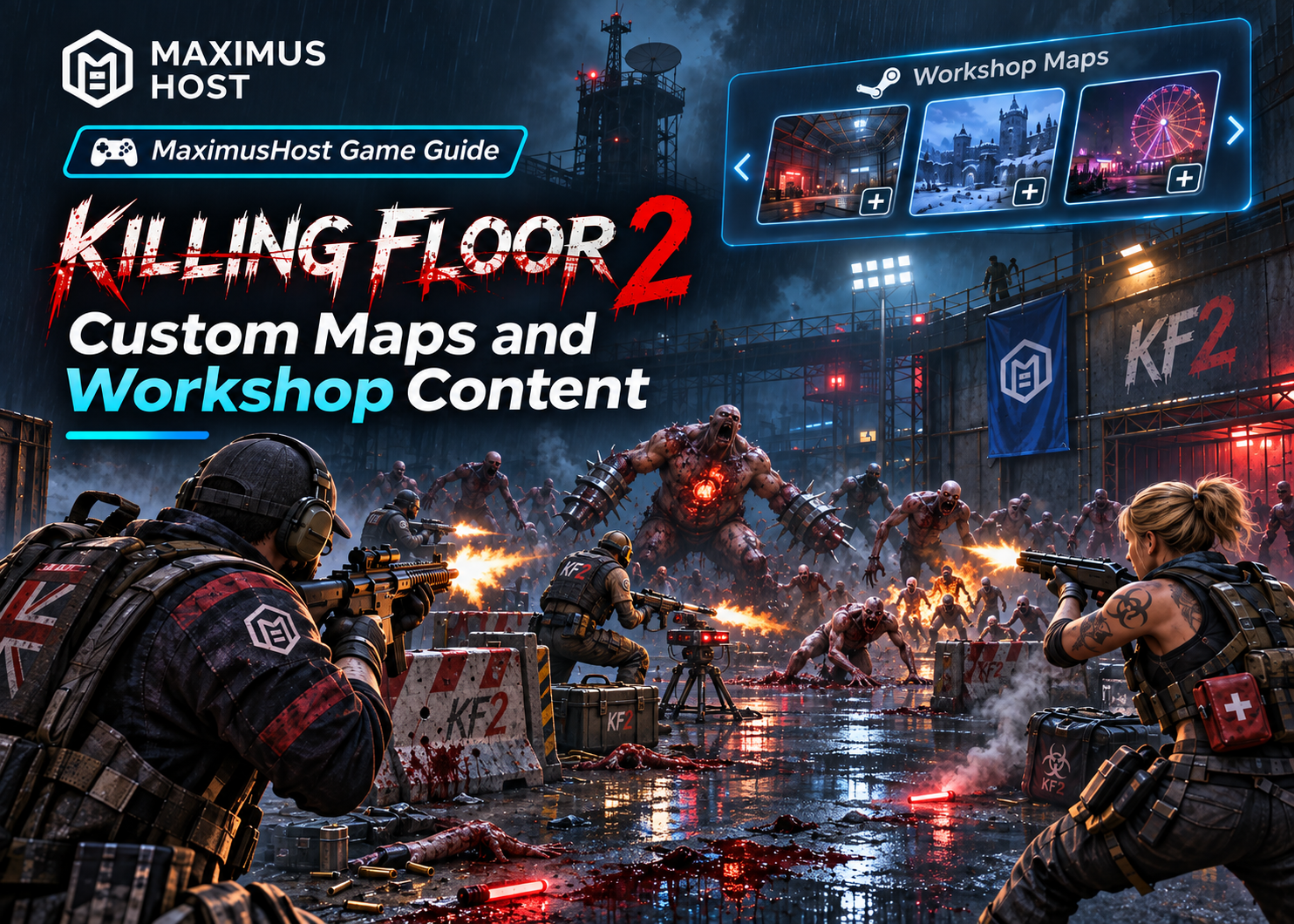
Killing Floor 2’s stock maps are the simplest place to start, but a compatible custom map can give a regular group a new place to hold out. The key is to treat a Workshop subscription as a download request, not proof that the map is installed or ready. Add one item at a time, let the server fetch its files, and confirm that the map is available before using it in a match.
Stock maps and custom maps are different
Stock maps ship with the game server and are normally available as soon as the server is installed. A custom map comes from outside the stock installation, often through Steam Workshop. Workshop creators may target a client, a dedicated server, or a particular game mode; some items also depend on other files. A subscription alone cannot guarantee that a map will load on your server.
Before adding an item, read its Workshop description. Look for a dedicated-server note, supported game version, required dependencies, and any mode restrictions. Prefer a map that has recent feedback from server owners. Avoid items that require client-side files, unsupported server modifications, or mutators: MaximusHost can manage Workshop subscriptions and maps, but it does not activate mutators.
Add a Steam Workshop subscription
- Make a full server backup if this is an established server, then stop it.
- Open the server’s Mods tab.
- Paste the Workshop item’s numeric ID or its Steam Community Workshop link.
- Choose Add Workshop item and confirm that the subscription appears in the list.
- Keep an installed stock map selected as the starting map, then start the server.
- Allow startup to finish. Refresh Mods → Maps and look for the custom map as an installed map.
KF2 downloads subscribed content as the server starts. The Mods panel lists subscriptions, but it does not show per-item download progress. If a subscribed map is not listed as installed after startup, check the console output and the Workshop item’s server requirements before trying again. Avoid repeatedly switching the starting map while the download is incomplete.
Removing a subscription is also a stopped-server change. Removing it changes the subscription list used on a later start, but it does not remove files already downloaded. If the map is in rotation, remove it from the rotation separately. Do not delete unfamiliar files to clean up a Workshop item; make a backup and contact support if you are unsure which files are safe to remove.
Choose a starting map or build a rotation
The Starting map is the map loaded when the server starts. The Map rotation is the ordered list of maps KF2 can cycle through during play. A map can be installed without appearing in the rotation, and subscribing to a map does not automatically make it the starting map.
After the custom map appears as installed:
- Open Mods → Maps and choose Add to rotation for the map.
- Reload the server’s Manage page if needed so the Settings map list reflects the installed map.
- Open Properties → Killing Floor 2 Settings and select the desired Starting map.
- Arrange the rotation order and keep at least one known-working map active.
- Save for the next start or restart. If you use Save & restart now, follow the restart overlay and startup output until the server is ready.
Try a custom map in a short session before making it the only map in rotation. Some maps are built for specific modes or wave lengths. If a mode does not start correctly, switch to a stock map, choose a supported mode, and restart before testing another combination. See Manage maps and map rotation and Difficulty, game mode, and server settings.
Check Steam and Epic client compatibility
Steam Workshop content is distributed through Steam. Epic Store players cannot download custom files hosted only on Steam Workshop, so they may be unable to join a server running one of those maps. If your group mixes Steam and Epic clients, use stock maps for shared sessions unless you have confirmed another supported distribution path for the custom content. Keep in mind that having the same game installed does not guarantee every Workshop item is available to both stores.
Troubleshoot a map that will not load
- The map is subscribed but not installed: switch back to a stock starting map, start the server, let startup finish, and refresh Mods → Maps.
- The server fails when using the custom map: select an installed stock map and restart. Check Console and Logs for a missing package or startup error.
- The map is installed but absent from Settings: reload the Manage page and check the installed map list again.
- Players cannot join: confirm their game versions match the server and whether their store can access the Workshop files.
- A mode will not start: return to a stock map and select a common mode, then test the custom map and mode combination separately.
- You removed a subscription but still see the map: removal does not erase files already downloaded. Remove the map from rotation as a separate step.
- AI Diagnostics are available for every server in case you need immediate assistance. This service cannot fix an issue but will provide log indicators or resource restraints that may help resolve an issue.
Make changes safely
Save one change at a time and verify it before adding more subscriptions or changing the rotation. Back up the server before altering an established map list. A restore replaces the current files with the backup and may discard later progress. MaximusHost does not provide a control to force an individual Workshop item to update, and a listed subscription is not a promise of universal compatibility.
For the exact dashboard steps, read Install Steam Workshop content, Backups and restore, and the Killing Floor 2 hosting overview. Careful subscriptions and a stock-map fallback make it easier to experiment without putting your group’s regular server at risk.