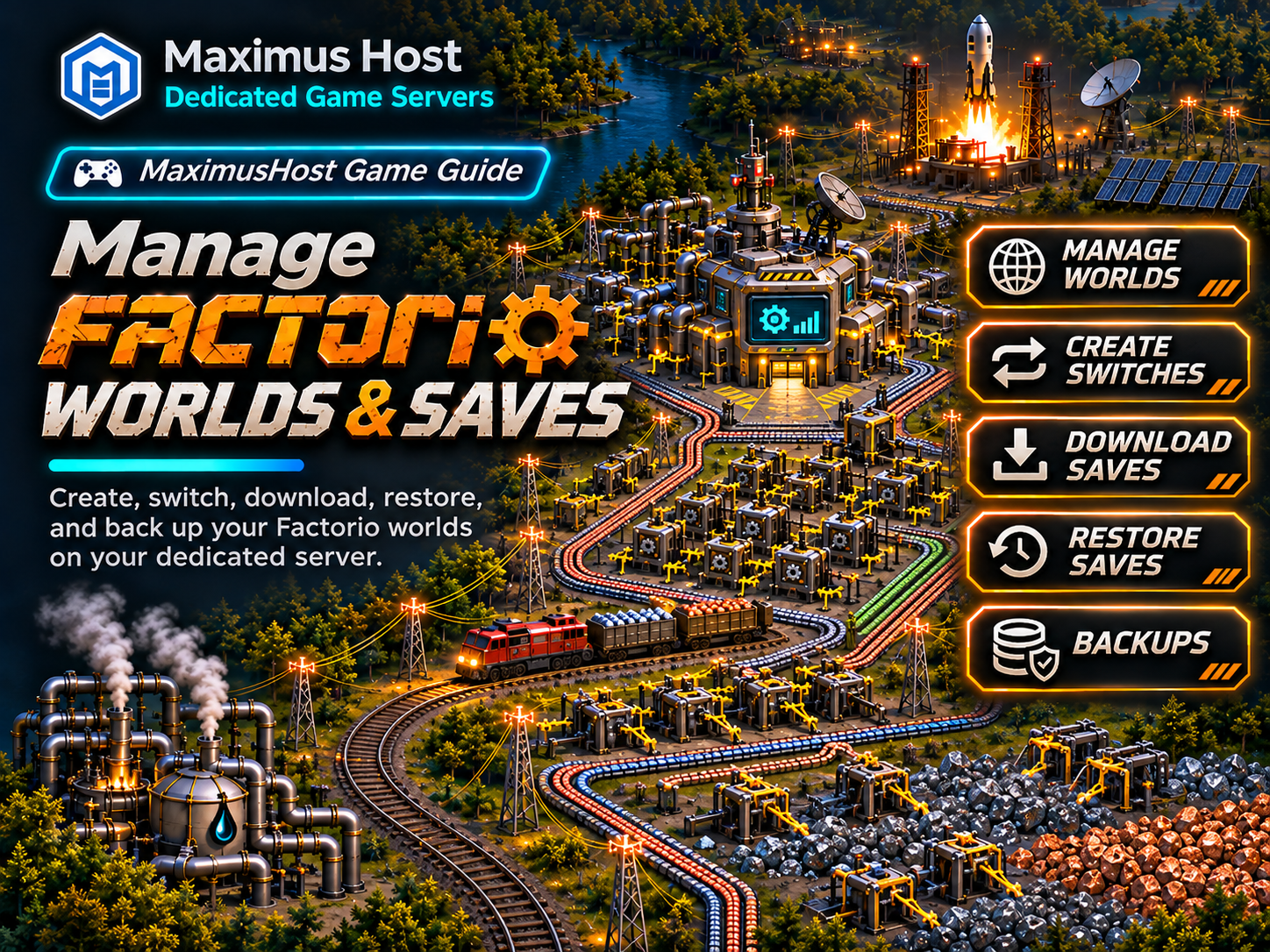
Factorio worlds are stored as save archives. The Worlds tab lists the recognized saves and provides controls to create, import, select, rename, download, and delete them. Stop the server and wait for it to finish stopping before changing the save list. This avoids editing world files while Factorio may still be writing to them.
Create a world
- Stop the server and open Worlds.
- Enter a save name and seed. A seed of `0` asks Factorio to choose one.
- Choose a built-in map preset or provide a `MapGenSettings` JSON object for terrain and resources.
- Optionally provide a separate `MapSettings` JSON object for gameplay behavior such as pollution, enemy evolution, and expansion.
- Choose Create save and wait for the operation to finish.
Map generation settings and gameplay settings control different parts of a new world. The installed Factorio version validates the JSON fields. Both documents apply when the new save is created; editing them does not regenerate an existing map. If a custom JSON object is rejected, start with a built-in preset or compare its fields with examples for the installed game version.
Creating a save does not explicitly pin it for the next start. Use Use on next start to select the exact world you want. If you have not pinned a save, LinuxGSM’s latest-save behavior is used. Check the selection before starting when you have multiple worlds, especially after importing or creating one.
Import an existing save
- Stop the server.
- Choose Import a save and select a Factorio save ZIP no larger than 8 GB.
- Keep the page open while the upload completes and the archive is checked.
- Confirm the new archive appears in the save list, then choose Use on next start if it should be the next world loaded.
Import creates a separate archive; it does not overwrite a save with the same name and does not start the server. If the import fails, check that the file is a complete Factorio save archive and that it is within the upload limit. Do not repeatedly submit a large archive while an earlier upload is still processing.
Select, rename, and delete
Use Use on next start on a save to pin it, or clear the selection to return to the latest save. Renaming a save changes its displayed name; if it is selected, the next-start selection is updated with it. Stop the server before renaming or deleting files.
Deletion is permanent. Before deleting, download a copy or make another verified backup. Select a different save before deleting the selected or latest save. The management controls can be unavailable when a start command is sent; review that configuration before treating a missing control as a save failure.
Download a save
Choose Download save beside an archive to retrieve that world through your authenticated MaximusHost session. Store the downloaded file somewhere you control and keep it private if the world contains information you do not want to share. A downloaded save is a copy of that world archive, not necessarily a complete backup of every server file or setting.
Protect a factory during game updates
Factorio updates can affect save compatibility. The server follows Factorio’s stable branch and checks for updates before a container starts; scheduled checks are disabled while it runs. A start may therefore install a newer stable release before loading a save. Wube’s Factorio 2.1 release notes state that saves upgraded to Factorio 2.1 cannot be downgraded to 2.0. Back up an important world before starting after an update, and verify the backup can be restored before relying on it.
World import and download controls are separate from the customer’s full server backup and restore process. A save archive can help preserve the world, while a server backup may include other data needed to recover the service. Follow the backup instructions before using it as your only recovery plan.