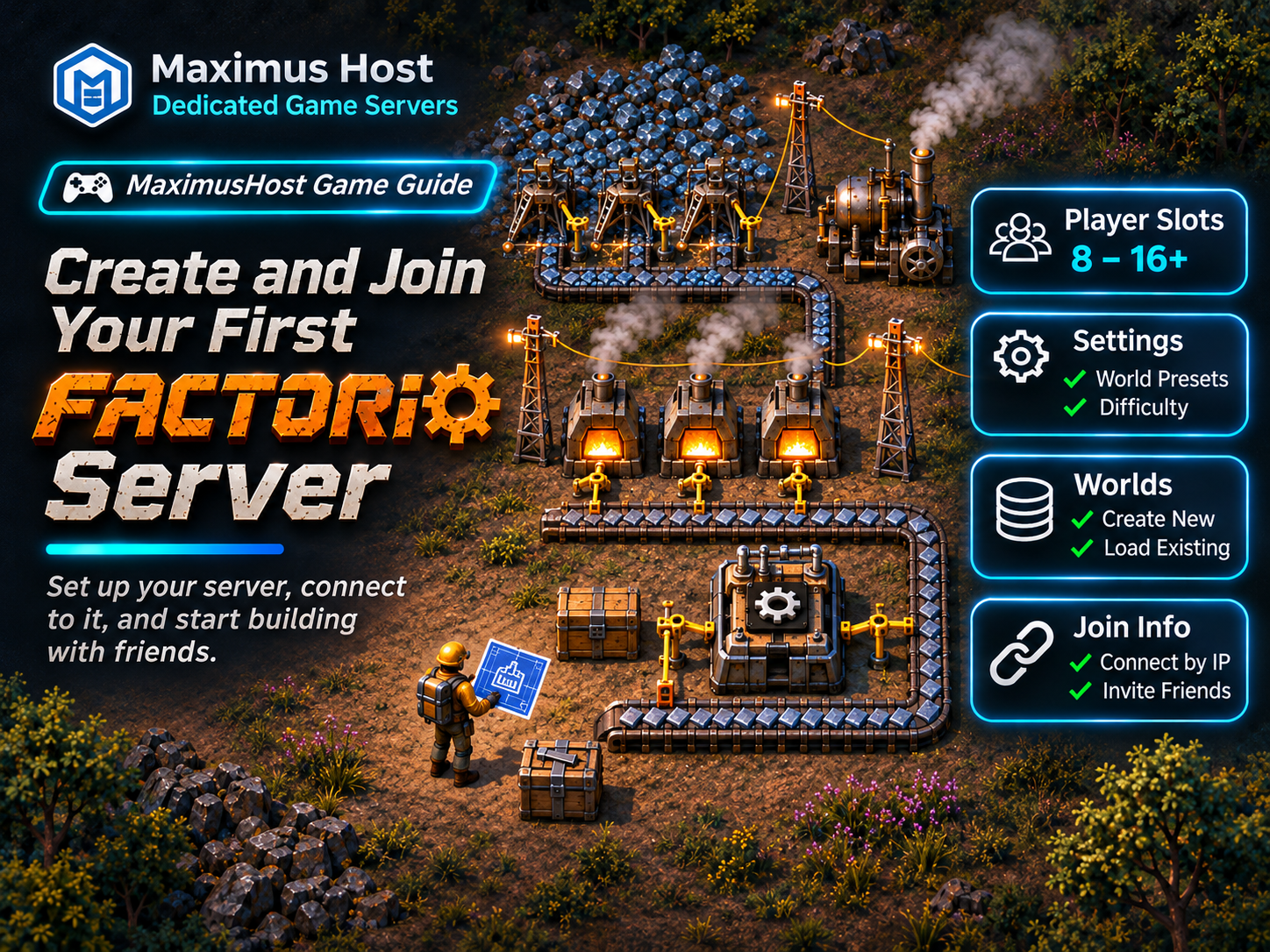
A dedicated Factorio server keeps a shared factory available without requiring one player to host from their own computer. Before creating one, agree with your group on a world, game version, mods, player limit, and whether the server should be private. These choices affect who can join and how easy it is to keep everyone’s client compatible.
Create the server
- In MaximusHost, open My Servers and choose Create New Server.
- Select Factorio and review the live resource and pricing information in the form. The calculator reflects the resources and schedule you choose; an always-on server uses more running time than a server you stop between sessions.
- Choose a name, location, RAM, and CPU. Pick a location convenient for most players, then submit the form once.
- Wait for setup and readiness to finish before trying to connect. A submitted request or visible server card does not necessarily mean the game process is ready.
- Open the server’s management page and copy the connection address shown in Overview. Use the complete address, including a port if one is displayed; do not substitute a port from another server.
For a first session, keep the server private. Public listing requires valid Factorio account credentials in server settings. Mod Portal search uses the same saved username and authentication token. MaximusHost does not need those credentials for a private address-based game, and you should never put an account token in a support message or share it with other players.
Join from Factorio
- Update the Factorio client before connecting. The client and dedicated server need compatible game versions.
- From the main menu, choose Multiplayer, then Connect to address.
- Paste the address copied from the management page. Enter the in-game server password if one has been configured.
- If the game offers to synchronize the server’s mods, review the list and accept only if you intend to use that mod set. Factorio multiplayer requires matching game versions and mod versions across players.
Factorio multiplayer uses UDP. The game commonly uses UDP port 34197, but a hosted server can show a different externally assigned port. Follow the exact address and port provided for your server rather than assuming the default.
Choose who can join
Start with private visibility while you confirm the address and invite your group. A game password and an allowed-player list are separate controls: a password restricts entry, while a whitelist limits which player names may join. Ask the server owner to check these controls if one person can connect and another cannot. Public listing is a separate choice and requires usable Factorio account credentials. Do not enable public listing until you understand the exposure and have saved the required credentials through the supported Settings page. Keep those credentials private; they are not needed to join by a private address.
The server owner can reveal the saved join password in Settings → Show password. A collaborator needs the separate View server password permission to use the reveal. The owner can also grant Get Password to a trusted linked Discord user or role; the bot sends the join password in a private response. Share it only with intended players and never post it in a public Discord channel.
Manage play sessions
Use the management page’s start and stop controls to manage sessions. Wait for each operation to finish before starting another. Stopping an unused server can reduce running-time charges when your plan uses metered runtime; storage and other plan terms may still apply. Check the current plan details instead of assuming that stopping makes every charge disappear.
Before changing a world, server setting, or mod set, make sure the server is stopped and save a backup you can recover. Game updates can change save compatibility. A start may install a newer stable Factorio release before loading the world, so avoid experimenting with an important save during a release transition.
If you cannot connect
First confirm that the setup operation finished and the management page reports the server ready. Copy the address again, including its port, and check whether a game password is required. Confirm that your client version matches the server and that any required mods are synchronized. If you can reach the server but cannot enter the world, ask the owner to check the player limit, whitelist, and ban list.
If the server remains unavailable, contact MaximusHost support with the server ID, the approximate time, your Factorio version, and the error text. Remove addresses, passwords, account tokens, and other private configuration from screenshots and logs before sharing them.