

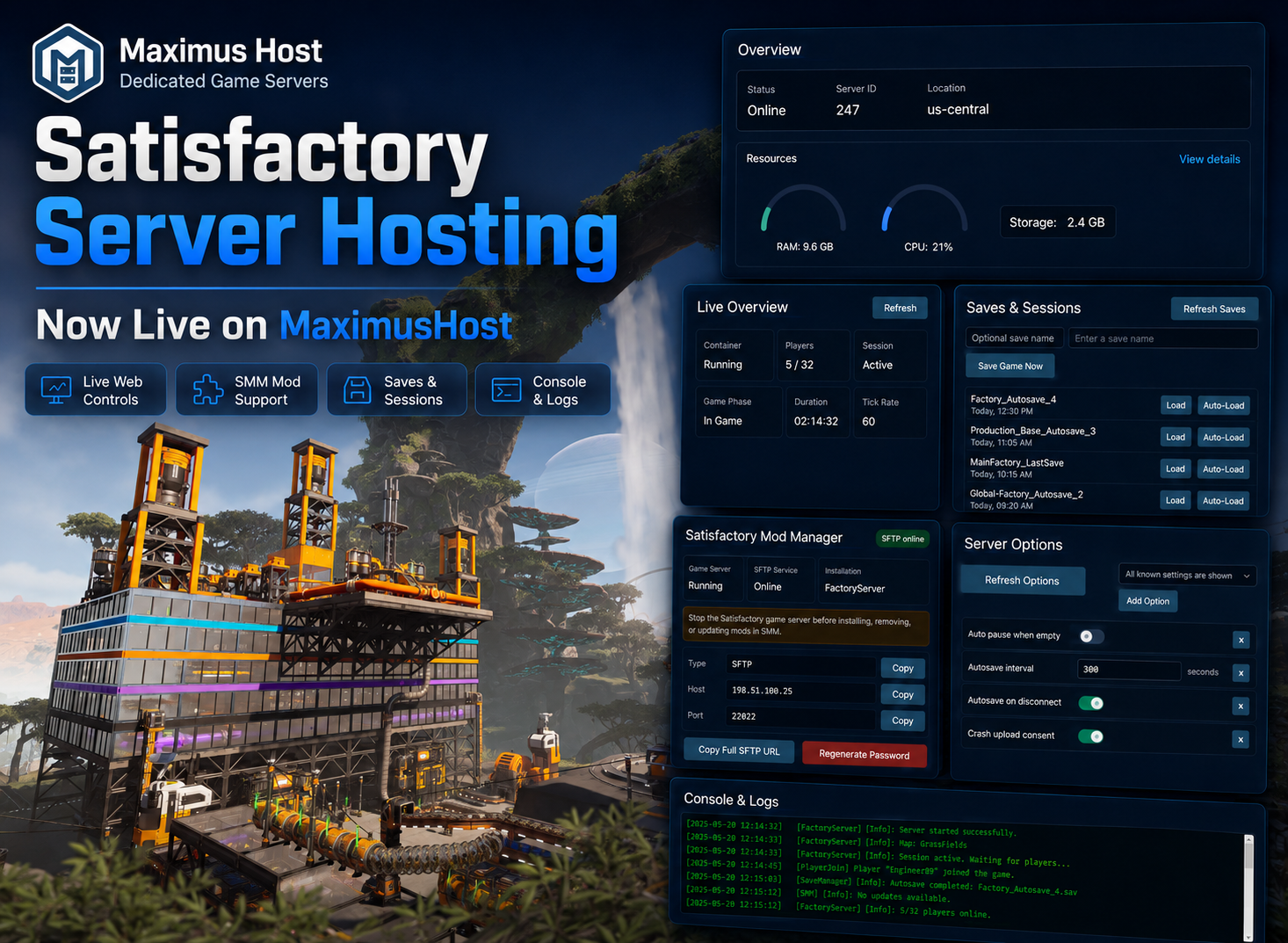
Satisfactory server hosting is no longer limited to Premium and Founder access. All MaximusHost users can now create and manage their own Satisfactory dedicated server directly from the MaximusHost control panel.
Whether you are building a private factory with friends or running a larger community server, MaximusHost provides tools for controlling the server, monitoring its status, managing saves and settings, installing mods, automating uptime, sharing access, and keeping track of server costs from one place.
Complete Server Control
Each Satisfactory server includes a dedicated management page where you can:
- Start, stop, and restart the server.
- View the current server status.
- Copy the server connection address.
- Change the MaximusHost server name and subdomain.
- Configure the maximum player count.
- Select the Satisfactory game branch.
- Enable or disable seasonal events.
- Automatically generate a new player password whenever the server starts or restarts.
The Overview page also displays current memory, CPU, and storage usage so owners can see what their server is consuming without accessing the underlying host.
Built-In Satisfactory Management
MaximusHost includes a dedicated Satisfactory management interface built around the game’s server management API.
The Live Overview displays information such as:
- Container status.
- Connected players and player limit.
- Active session.
- Current game phase.
- Tech tier.
- Average tick rate.
- Total game duration.
- Pause state.
The panel refreshes automatically while it is open, with an option to request an immediate update at any time.
Server owners can also save and validate their Satisfactory API token directly through the WebUI. The token is stored on the server node rather than being returned to the browser after it is saved.
Common Server Actions
Frequently used Satisfactory controls are available directly in the management page instead of requiring console commands.
These include:
- Renaming the Satisfactory server.
- Setting or clearing the player/client password.
- Changing the administrator password.
- Selecting the session that should automatically load when the server starts.
MaximusHost can also store the client password when it was set through the platform, allowing it to be retrieved later from supported areas of the control panel.
Administrator passwords are handled separately and are not stored by MaximusHost.
Server Options Through the WebUI
Satisfactory server options can be viewed and edited directly in the browser.
Available settings include options such as:
- Automatic pausing when the server is empty.
- Autosave interval.
- Autosaving when the last player disconnects.
- Crash report upload consent.
- Additional server options reported by the Satisfactory server API.
The interface displays the setting’s internal Satisfactory key along with a description and recommended usage where applicable.
Boolean values are presented as switches, while numeric and selectable settings use appropriate controls rather than requiring users to manually construct configuration values.
Changes that Satisfactory reports as pending are displayed separately so owners can see which values may require a restart or session reload before they take effect.
Save and Session Management
The Satisfactory management page also provides direct access to saves and sessions.
Server owners can:
- View available Satisfactory sessions.
- See the saves contained within each session.
- Review save timestamps and recorded play duration.
- Create a new save immediately.
- Load an existing save.
- Set a session to automatically load when the server starts.
The active session is clearly identified, making it easier to manage servers that have accumulated multiple autosaves or older factory sessions.
Advanced Game Settings
Advanced Game Settings are available through a separate owner-only section.
These controls expose Satisfactory settings capable of significantly changing an existing save, including options such as:
- Disabling arachnid creatures.
- Enabling flight mode.
- Enabling god mode.
- Item-granting related settings.
- Other Advanced Game Settings exposed by the server.
Because these options can alter gameplay balance or enable creative-style behavior, MaximusHost separates them from ordinary server settings and clearly identifies them as advanced changes.
Satisfactory Mod Manager Support
Satisfactory servers on MaximusHost now support remote mod management through Satisfactory Mod Manager (SMM).
Each server has an isolated SFTP service specifically for accessing its Satisfactory installation.
The Mods page provides everything needed to connect SMM:
- SFTP host.
- SFTP port.
- Username.
- Password with reveal and copy controls.
- Satisfactory installation path.
- One-click copying of the complete SFTP connection URL.
- SFTP service status.
- Verification that the Satisfactory server installation is available.
- Password regeneration.
The WebUI also shows whether the game server itself is currently running and warns the owner to stop it before installing, updating, or removing mods.
Once connected, the server appears in Satisfactory Mod Manager and can be managed similarly to a local Satisfactory installation.
Current Satisfactory modding documentation supports remote SMM management through SFTP and recommends shutting down the game server before changing mods. It also notes that client and server mod compatibility must be maintained where a mod applies to both sides.
This means communities can use SMM’s existing mod ecosystem and dependency handling rather than manually copying mod files onto the dedicated server.
Live Console and Server Logs
The Console page provides access to the live Satisfactory server log.
Owners can:
- Follow new log output automatically.
- Pause automatic log following.
- Refresh the displayed logs manually.
- Send supported Satisfactory management commands.
Quick-command buttons are included for common operations such as:
- Health.
- Server status.
- Server options.
- Saves and sessions.
- Advanced settings.
- Save game.
- Set auto-load session.
- Generate API token.
Commands can be prepared with a button and reviewed before they are sent.
Adjustable Resources and Usage Monitoring
Satisfactory can become increasingly resource-intensive as factories grow.
The MaximusHost interface displays current:
- Memory usage.
- CPU usage.
- Storage consumption.
Allocated memory and CPU can be managed through the Resources section, allowing a server to grow along with the factory instead of requiring a completely new server.
Scheduling and Idle Auto-Shutdown
Satisfactory servers do not need to consume full runtime resources when nobody is playing.
The Schedule page provides automation for server uptime, including scheduled server actions and idle auto-shutdown.
Idle shutdown uses Satisfactory player-count information to determine whether the server has remained empty for the configured period before stopping it.
This allows a private or community server to remain available when needed without requiring it to run continuously.
Share Server Management Without Sharing Your Account
Satisfactory server owners can share management access with other MaximusHost users.
Permissions can be assigned individually so another user can be allowed to perform specific tasks without receiving unrestricted access to the owner’s MaximusHost account.
Available shared permissions include controls for areas such as:
- Starting and stopping the server.
- Restarting the server.
- Viewing the console.
- Editing server properties.
- Other supported management functions.
Sensitive owner-only functions remain restricted.
Discord Integration
Satisfactory servers can also be connected to the MaximusHost Discord bot.
Discord integration allows communities to access supported server information and controls directly from Discord, including functions such as:
- Checking server status.
- Starting or stopping the server.
- Restarting the server.
- Retrieving supported server connection information.
- Restricting access to approved Discord servers, channels, roles, or users.
This allows a community to delegate basic server operation without giving every member access to the full MaximusHost management panel.
Credit and Cost Controls
The Credits section provides visibility into the resources and credits consumed by an individual Satisfactory server.
MaximusHost also provides cost-protection tools that can be used alongside schedules and idle shutdown to prevent a server from consuming credits indefinitely when it is not needed.
Server owners can configure protections based on how they intend to operate the server, whether that means a frequently used community server, a scheduled server for a regular group, or a server that is started only when someone wants to play.
Start Your Satisfactory Server
Satisfactory hosting is now open to every MaximusHost account.
Create a server, choose the memory and CPU resources you need, select a server location, configure your factory, and invite your players.
As the factory grows, MaximusHost provides the tools to manage resources, saves, settings, mods, automation, shared access, Discord integration, and server costs without requiring direct access to the underlying host.
Create your Satisfactory server from the MaximusHost My Servers page.
See more about how MaximusHost manages games with dedicated IP addresses.