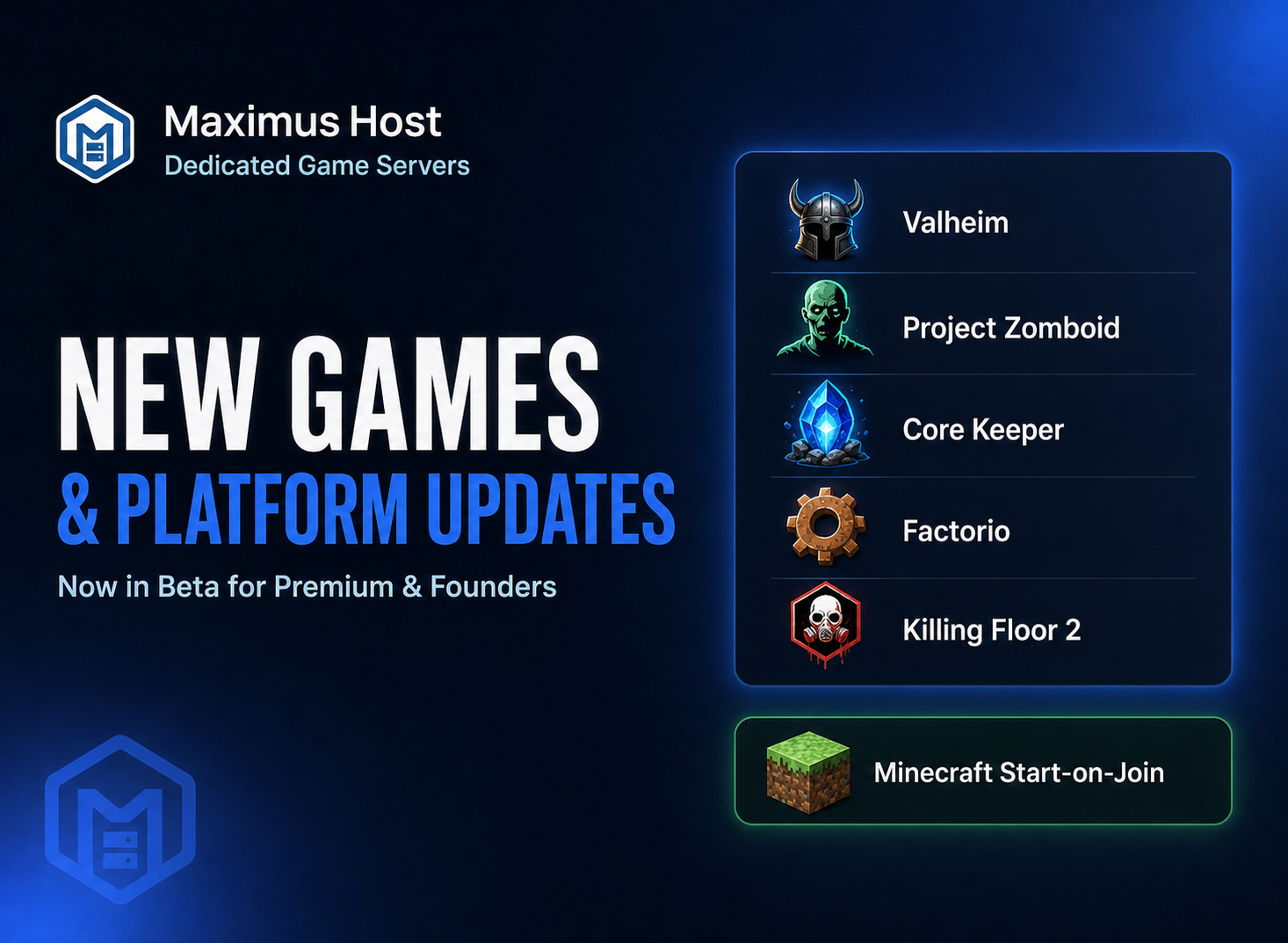
A dedicated Killing Floor 2 server gives your group a place to meet without asking one player to host every match. Your friends can use the same server address, return to saved settings, and agree on a difficulty, game mode, and map rotation that suits the group. Once the server is set up, the owner can start it for a session and stop it when everyone is done.
Choose a practical starting setup
For a small group, begin with the resource guidance shown in the MaximusHost creation form. Killing Floor 2 currently starts at 4 GB of RAM and 2 vCPU, with a suggested range of 4–8 GB RAM and 2–4 vCPU. These are starting points: the number of players, selected mode, and map can change what a session needs. Check the available options and live estimate before creating the server, then review resource use after a typical match.
There is a one-time 50-credit creation fee and the server creation form shows estimated running charges from the RAM and CPU you select. Storage incurs minimal charges while the server is stopped. Stopping the server between play sessions can reduce runtime charges, but it does not remove the server or its saved files. Use the live estimate and current billing information rather than assuming a fixed monthly price.
Create the server
- Sign in to MaximusHost and open My Servers.
- Select Create New Server, then choose Killing Floor 2.
- Enter a name your friends will recognize and choose a location and resource allocation.
- Review the estimate, including the one-time creation fee, and submit the form.
- Wait for the initial installation to finish. When the server appears in My Servers, open its management page.
The game has separate player and administrator passwords. Set a player join password to limit the session to your group. Keep the administrator password private; friends joining a match do not need it. For more detail, see create a Killing Floor 2 server and manage server settings.
Pick the match your group wants
Open Properties → Killing Floor 2 Settings. Choose a starting map, then select a game mode such as Survival, Weekly Outbreak, Versus Survival, Endless, or Objective. Pick a difficulty from Normal, Hard, Suicidal, or Hell on Earth. If you use standard Survival, choose a short, normal, or long wave length. A map may not support every mode, so keep a known stock map selected while you learn the settings.
Use Maximum players and Maximum spectators to set the session limits. Survival, Weekly Outbreak, Endless, and Objective support up to six player slots; Versus Survival supports up to twelve. Set Minimum players to begin to suit the group, then save. Settings take effect on the next start or restart. If the server is already running and you have permission, Save & restart now queues a restart and opens the console overlay so you can watch the operation.
Find the address and join
- Start the server from its management page and wait until the status is Running and startup output has settled.
- Open Overview and copy the Game address, including its port.
- Launch Killing Floor 2 and open its in-game console (usually the tilde/backtick key; keyboard layouts vary).
- Enter `open your-game-address`, replacing the example with the exact Game address shown in your account.
- Enter the player join password when the game asks for it.
Use the Game address for players. The Query port supports server discovery and the Steam port supports Steam networking; neither is the player connection port. The in-game server browser may not reliably list shared-port servers, so direct connection through the console is the recommended method. The connection guide has additional troubleshooting steps.
Share the join password privately
The server owner can set, replace, or remove the player password in Properties → Killing Floor 2 Settings. The owner can reveal the currently saved join password in Properties. For Discord retrieval, link a MaximusHost account with `/mh link`, have the owner grant Get Password to the trusted account or role, then use `/mh list`, select the server, and choose Get Password. The bot sends the player password in a private response. It does not reveal the administrator password.
Share the address and password in a private group channel or direct message. Do not post passwords in a public server channel. If a player cannot join, check that the password is current and that nobody copied the administrator password by mistake.
Start and stop sessions
Use Start when your group is ready to play and Stop when the session is over. Restart applies saved changes that require a new server process. Wait for the current operation to finish before requesting another. Console and Logs show startup output and useful errors; a queued restart is not complete until the server returns to its running state.
Before changing maps, subscriptions, or several settings at once, create a full-server backup in Backups. A restore replaces the current files with the selected recovery point and can remove later changes. See backups and restore.
If something goes wrong
- The server is still setting up: wait for installation or update messages to finish before trying another start.
- Friends cannot connect: copy the current Game address from Overview and use it in the console. Confirm the server is Running and check the player password.
- The map fails to load: return to an installed stock map and restart. Custom maps must be downloaded and installed before you select them.
- A setting did not change: confirm it was saved and restart the server. Check that your map supports the selected game mode.
- The console reports a startup error: note the safe error text and contact support with the server ID. Never include either password.
For more detailed help, start with Killing Floor 2 troubleshooting or visit the Killing Floor 2 hosting overview. AI Diagnostics can be used to help resolve issues, finding error messages and reviewing resource allocation to point out potential problems.
With the address saved, a private join password in place, and a stock map ready, your group can focus on the next wave instead of rebuilding the setup each time.