Mods can change recipes, research, maps, interfaces, and the rules of a factory. Every player joining a modded multiplayer game needs the same Factorio version and compatible mod versions. Plan the mod set with your group before changing an established world, and keep a backup that you can restore if a mod update causes problems.
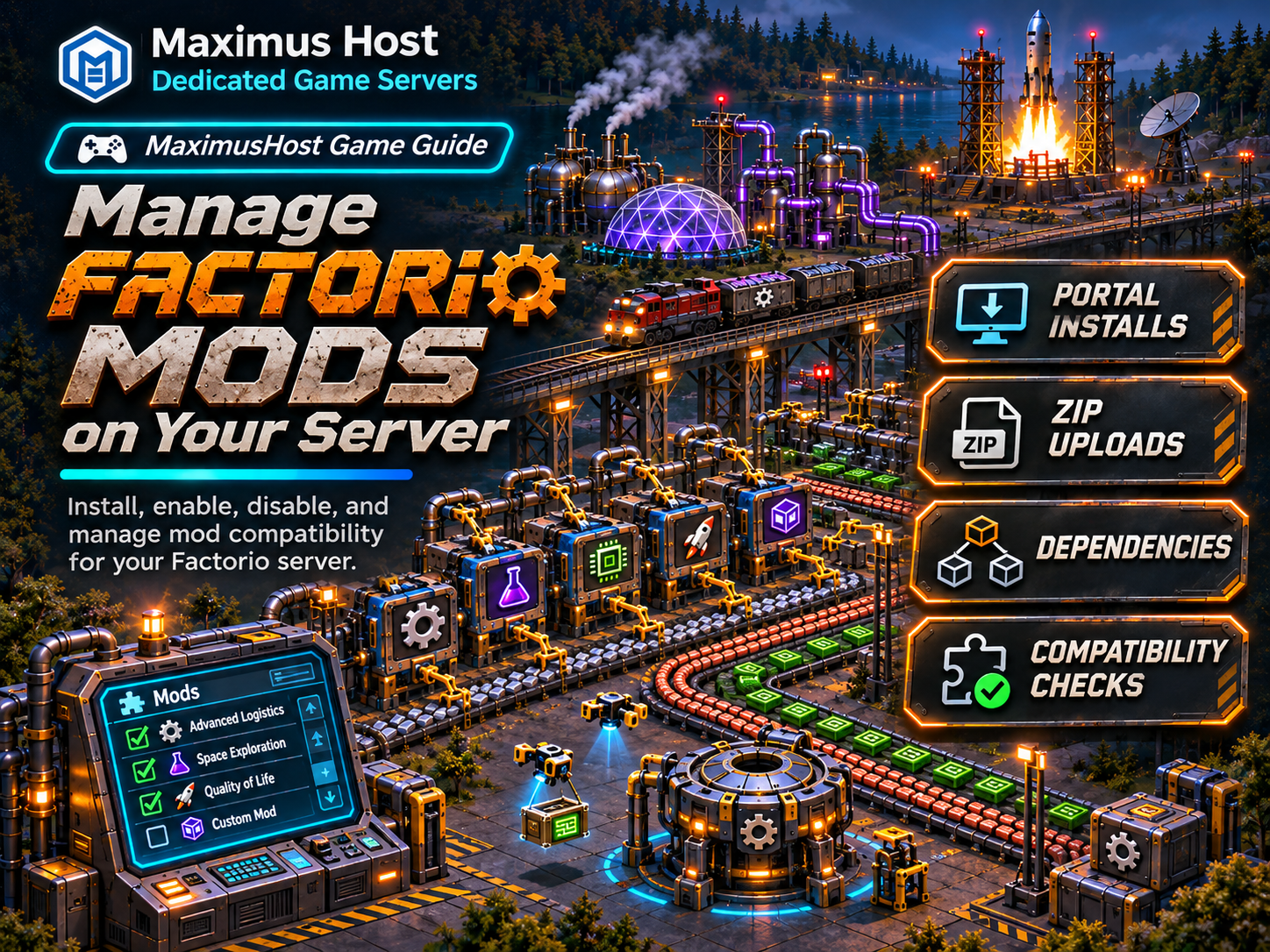
The Mods tab can search compatible community releases from the Factorio Mod Portal and install them directly. The first time you use search, enter your Factorio username and authentication token in the setup form. MaximusHost saves them through the existing Factorio Settings workflow; the token is write-only and is never returned to the browser. After saving, the search controls become available without reloading the page. You can still use Install ZIP for a package you downloaded yourself.
Choose compatible mods
Before downloading, check each mod’s supported Factorio version, release date, required dependencies, optional dependencies, and incompatibilities. A mod marked for another Factorio release may not load even if its ZIP uploads successfully. Space Age content can also have different requirements from base-game content, so check the mod author’s notes for the expansion and version you use.
Read dependency relationships before installing a large set. A required dependency must be available for the dependent mod to load; optional dependencies add features but may not be necessary. Open the release details in Mods to review the dependencies listed for a compatible release, then install required packages as needed. Do not assume that optional dependencies must be installed.
Prepare and upload a package
Use the ZIP package supplied by the mod author. It should contain the mod directory and its `info.json` metadata file in the structure expected by Factorio. Avoid repacking files unless the original archive is malformed: adding an extra wrapper directory or omitting metadata can make a valid mod appear invalid. Keep the original download so you can re-upload the same version if needed.
- Tell players that the server will be unavailable while its mod set changes.
- Stop the server and wait for the stop operation to finish.
- Open Mods and search for the community mod, or choose Install ZIP to upload a package.
- Review the compatible release, version, and listed dependencies before installing.
- Install required dependencies and enable the intended packages. Leave unrelated or incompatible mods disabled.
- Start the server and wait for readiness. Check the server status and recent logs before inviting players.
Validation checks the archive and metadata, but it cannot guarantee that a mod will run correctly, work with a particular save, or coexist with every other mod. If startup fails, stop making changes, read the error, and restore the previous known-good mod set or backup.
Keep players and saves in sync
Factorio can offer clients the option to synchronize a server’s mod set when they join. Review the synchronization prompt and follow it if that is the intended shared setup. All players still need a compatible game version, and mods may have settings or dependencies that affect the world. Ask everyone to reconnect after a change and confirm that their client is using the same mod versions as the server.
A world created with mods may depend on those mods to load correctly. Removing or downgrading a mod can alter entities, recipes, or saved state. Before disabling or removing anything, read the mod’s migration notes and make a backup. Test a change on a disposable world when you are uncertain; do not use an important factory as the first experiment.
Plan an update with your group
Write down the mod names and versions that make up the working set before changing it. Tell players when the server will be stopped and whether they need to update their clients. Apply one planned set of changes, start the server, and wait for readiness before inviting anyone back. If a mod has a migration guide, follow its sequence and note any required in-game action. Keeping a record makes it easier to compare the current setup with the last known-good set if the next start fails.
Disable or remove a mod
Stop the server before changing the active set. Disable a mod when you want to keep its package available but not load it. Remove a package only when you no longer need it, and check whether another installed mod depends on it. Start the server after the change and verify readiness before players reconnect. If the world fails to load or behaves unexpectedly, stop it and restore the previous mod set or a known-good backup.
The Mod Portal only lists compatible community releases for the server’s installed version. Official Base and expansion content are not installed from the community catalog. A compatible release or valid ZIP does not guarantee that a mod will load, work with a particular save, or behave correctly with another mod. If the saved account authentication is rejected, update the username and token in the Mods setup form. Never include account tokens in screenshots, logs, or support requests.