Palworld’s resource needs depend on the world your group is building. Player activity, bases, settings, and active gameplay all affect server workload. Start with the recommended range, then review usage during a typical session.
Start with the recommendation
When creating a Palworld server, you can choose 4–16 GB RAM and 2–8 vCPU. MaximusHost recommends starting with 8–12 GB RAM and 4–6 vCPU. The create form shows the current options and estimate for your account.
For a new world, choose a starting allocation within the recommendation that fits your plans and budget. If you expect multiple active bases and long play sessions, consider more headroom. You can adjust resources later as the world develops.
Understand RAM and CPU pressure
RAM supports the server process and active world state. CPU processes simulation and activity. If the manager shows repeated memory pressure, more RAM may be worth evaluating. If CPU is consistently busy, raising memory alone is unlikely to address the cause. If both look comfortable but players see a specific error, investigate settings, the active save, and console output before changing resources.
Open Resources in your Palworld server manager to review RAM and CPU use. Compare a quiet period with a typical busy session, and note whether the server recently started, switched worlds, or saved.
Use the same world and similar activity when comparing readings. A short peak during startup or a save is less useful than repeated pressure during normal play. Ask players what they were doing when a slowdown began, then compare that time with the resource view and console messages. If the manager shows comfortable usage, investigate the setting or connection involved before increasing the allocation.
Build a useful workload comparison
Palworld worlds change as players build and return over time. Compare sessions with similar conditions. Ask whether players are in one area or spread out, whether the world or settings changed since the last stable session, whether the problem began after selecting a different save, and whether it appears only during a busy period. Player count alone is not a reliable sizing model: a few active players can create a different workload from a larger group doing little in the world.
For a useful baseline, record the selected save, RAM and CPU allocation, approximate active player count, and the activity that was underway. Repeat the observation in another similar session. This helps you tell a lasting resource pattern from a one-time event, a world-selection mistake, or a problem that affects only one player.
Adjust allocation carefully
When you want to adjust resources:
- Record the current RAM and CPU allocation and the active world.
- Observe resource use during normal play and note the symptom.
- Read console output for errors that could point to configuration or startup trouble.
- Make one allocation change in Resources.
- Repeat the same kind of session and compare the result.
Increase resources when pressure repeats under normal workload. Reduce an allocation only after sustained, representative usage remains comfortably below it. Leave room for the group’s busier sessions rather than sizing from an empty server.
Protect the world while testing
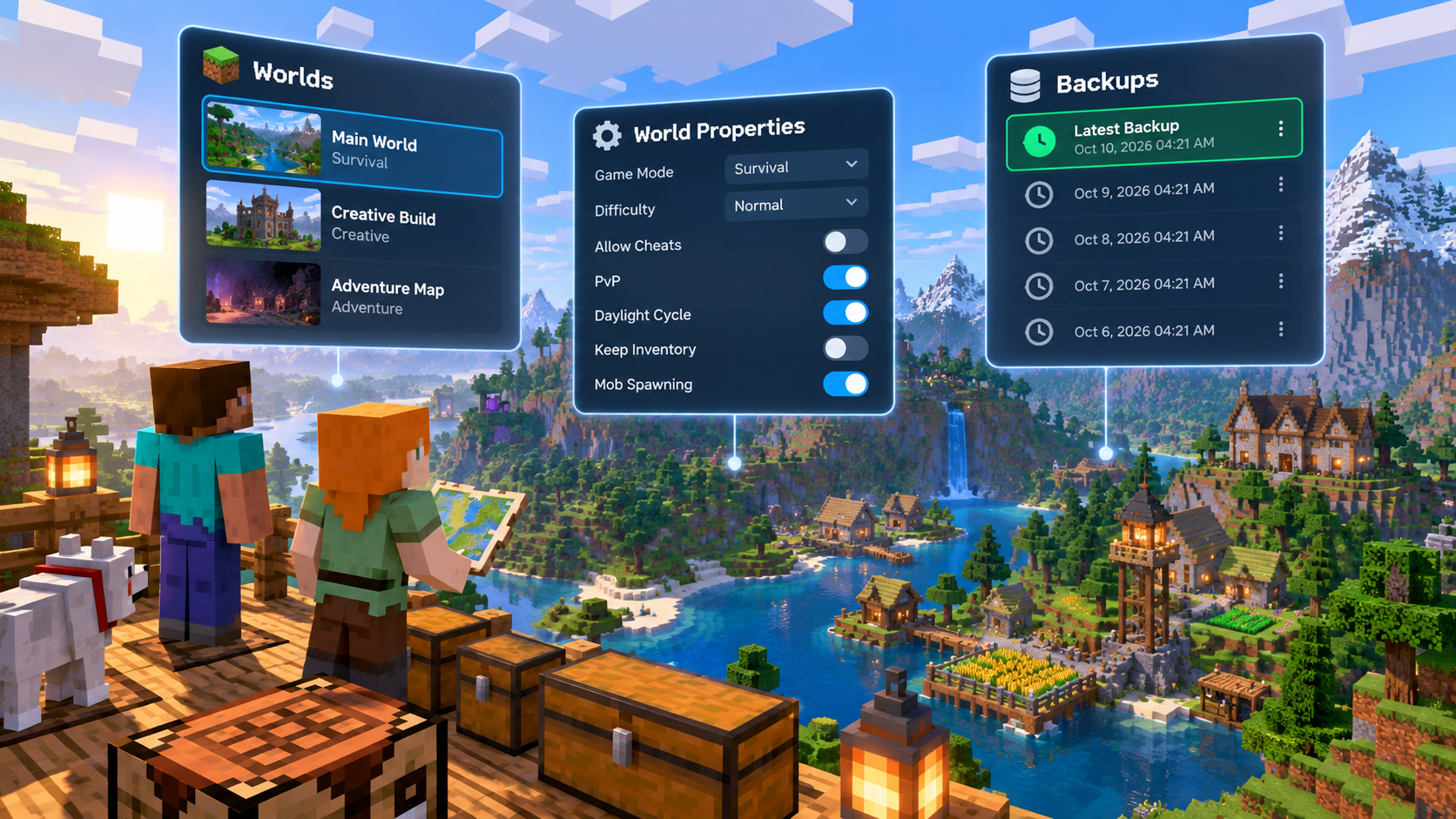
Before changing settings or selecting another world, create an owner backup and record which world is active. The Worlds area can keep multiple saves, but only the selected save loads. Characters, inventories, bases, guilds, and map progress stay with their world; switching saves does not merge them.
If something changes after a world switch or settings update, check which save is active before adjusting resources. A larger allocation will not correct a world-selection or configuration problem. Keep the backup and previous save available while you verify the change.
Budget with the live estimate
MaximusHost bills server usage in credits rather than through a fixed monthly Palworld package. Review your selected resources and expected running time in the live estimate, and see Billing and Credits for stopped-server charges.
Review Palworld hosting for the resource options and estimate, then adjust as your world grows.