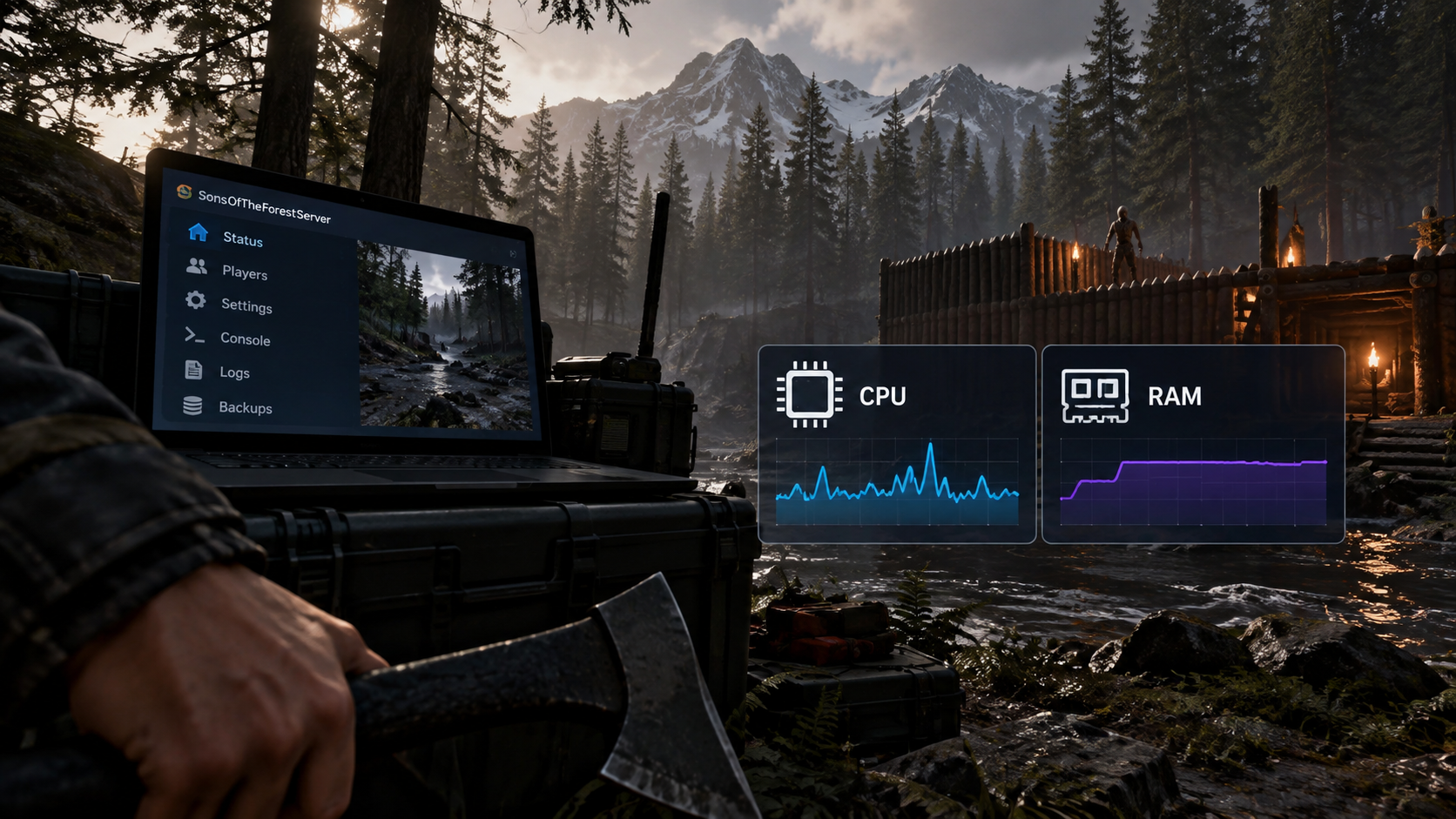
A dedicated Sons of the Forest server gives a cooperative group a shared server to join. The important setup decisions are resource allocation, dedicated-IP availability, region, and which world the group intends to use. The manager then provides supported world and setting controls, subject to ownership and permissions.
Confirm the dedicated-IP requirement
Sons of the Forest requires a dedicated IP for its game connections. The create form checks availability and shows the estimate for your account.
See Billing and Credits for how an assigned IP and a stopped server are charged.
Because a dedicated IP is required for this game, check availability and the displayed estimate before submitting the order. If you are planning a group session, share the address shown in your account only after the server is ready. The dedicated IP is for reaching the server; it does not increase RAM or CPU performance.
Choose resources and region
MaximusHost recommends 8–16 GB RAM and 4–6 vCPU. The create form offers 8–16 GB RAM and 2–8 vCPU. Choose a location that works well for your group and review the estimate before continuing.
Create the server
Open My Account → My Servers → Create New Server, choose Sons of the Forest, then enter a server name, location, RAM, and CPU. Review the dedicated-IP requirement, any one-time creation charge, and the running estimate before selecting Create Server. See Create a Sons of the Forest server for more detail.
After submitting, return to My Servers and wait for the server to show it is ready. Open the management page and copy the connection details before sharing them with your group.
Connect the group
Use the address shown in your MaximusHost account and the dedicated-server join option in Sons of the Forest. If a player cannot join, first confirm the server is running and that they have the latest address and a compatible game version. Share the address privately with your group and never send account credentials with it.
Check logs before changing resources. If only one player has trouble, compare that client’s game version and connection method with a player who can join. If nobody can connect, inspect the server state and configuration first.
If nobody can join, check the latest server status and console messages before editing settings. These checks help distinguish a server startup issue from an incorrect address or an individual client problem.
Configure and manage worlds
Use Worlds to create a world, select a save slot and mode, or upload a zipped save. Stop the server before changing worlds. Shared users need manage_worlds permission to make world changes.
Before a switch or upload, tell the group which world will be active, stop the server, and create an owner backup. Start the server after the change and confirm the intended world before inviting everyone back. Keep the previous save while the group tests the new one.
Use Properties for the Sons of the Forest settings available in the manager. The available controls cover supported game settings rather than every server file. If a setting change needs a restart, plan it before the session and let players know when the server will be unavailable. The server owner manages backups in Backups. Shared collaborators need the relevant permissions for the other tools they use.
Troubleshoot without losing the trail
For a failed connection, check server state and current address before editing settings. For a wrong or empty world, verify the selected save slot and world rather than creating more saves. For a setting that did not apply, check whether it is supported and whether the game requires a restart. Make one change, note it, and review console output.
Next step
Review Sons of the Forest hosting for the dedicated-IP requirement and resource estimate.