A shared world is easier to enjoy when everyone knows how to join, when the server will run, and what happens before a major change. Agree on a few basics before your first trip into Knox Country, then adjust as your group learns what works.
Decide who can join
Choose a recognizable server name and whether to list it in the public browser. A listing setting alone may not hide every Steam listing, so use a join password when you want one and share it privately. Each player also needs their own in-game account. The administrator password created with the server is separate and should stay private.
The host can copy the allocated Game address from My Servers for the group. See the connection guide for the join steps and password details.
Pick a starting allocation and play window
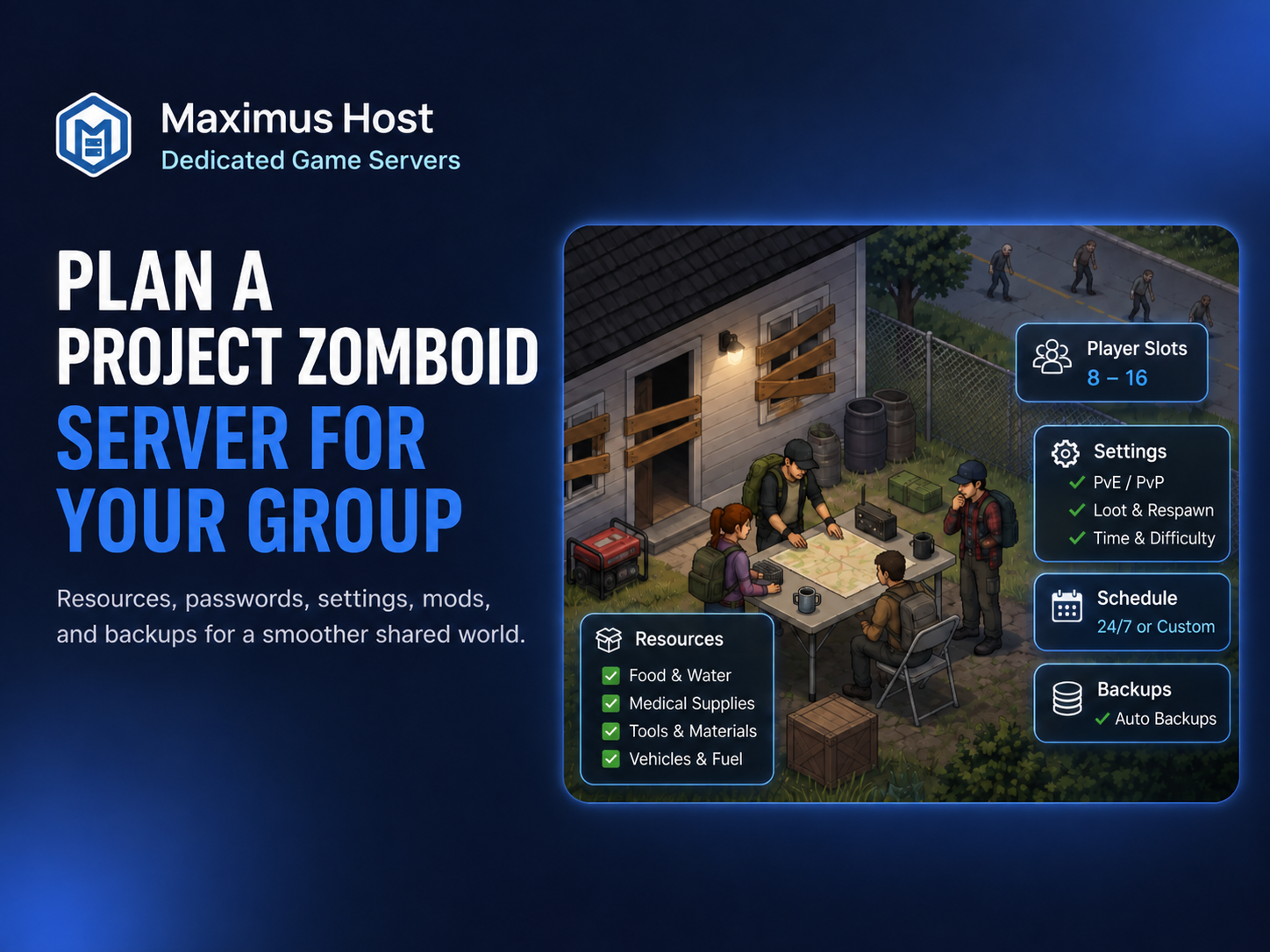
Start with the recommended 8–12 GB RAM and 2–4 vCPU, then check usage during a representative session. Exploration, player activity, and Workshop items can change the workload. The creation form shows available allocations and the current runtime estimate. New servers also have a one-time 50-credit creation fee.
If your group usually plays at predictable times, the owner can set a schedule. Idle Auto-Shutdown can stop the server after a selected empty period when the player count can be verified. Stopped servers may still incur storage charges. Compare options in the resource and pricing guide.
Agree on changes before making them
Discuss PvP, the public listing, and new player accounts with the group. Settings also offers a searchable selection of advanced server options; stop the server before saving. Zombie population and loot sandbox controls are not part of that editor. Read the settings guide before changing an established world.
Workshop items can change what the world needs to load. Check compatibility and dependencies, make a backup, and introduce changes one at a time. The Workshop guide explains the experimental manager and its limits.
Keep a way back
Create and download a backup before a major settings or mod change. Tell players when maintenance will happen and remember that restoring a backup replaces current data, including later progress. See backups and restoration for the steps, or explore Project Zomboid hosting and the server setup guide.