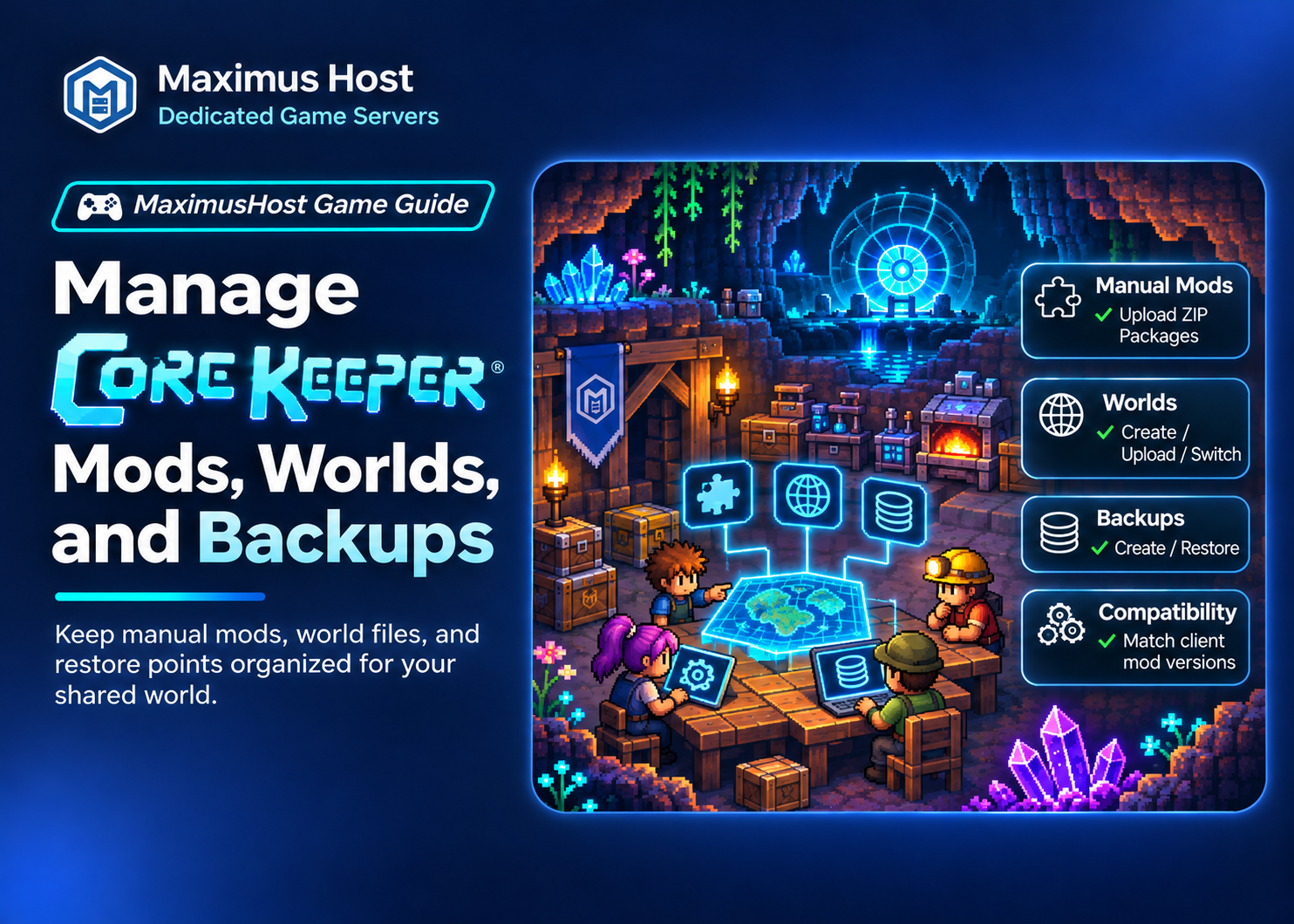
Core Keeper server maintenance is easiest when you treat mods, world data, settings, and backups as one connected state. MaximusHost supports manual server mod management and full-server backups, while world-only transfer tools are not currently available in the dashboard.
Install server mods manually
The Mods tab accepts supported mod ZIP packages. Core Keeper dedicated servers do not automatically subscribe to mod.io content. Download the server package from its author or source, review its manifest and dependencies, and upload it through the dashboard. The manager checks package structure, but those checks do not establish that a mod is safe or compatible with your world.
Production testing confirmed that server-side mod management works and that restoring a backup restores its corresponding mod state. This does not guarantee compatibility for every third-party mod or version. Follow the mod author’s requirements and inspect Console output after starting the server.
Match client mod versions
Players must install compatible matching mod versions on their own Core Keeper clients. The server does not synchronize mod files or subscriptions to clients. Before inviting the group, share the mod names and versions through a private channel and have players follow each author’s installation instructions. Check required dependencies and game-version support with the mod author.
A mismatch may prevent joining or cause unexpected behavior. Confirm the server version and each client’s game and mod versions before changing resources or replacing world data.
Make mod changes safely
- Tell players the server will be unavailable during maintenance.
- Stop the server and create a full-server backup.
- Change one mod at a time: upload, enable, disable, update, or remove it through the Mods tab.
- Start the server and review its status and Console output.
- Join with a test client using matching mods before the rest of the group returns.
Keep the original package until the new setup works. If a problem begins after a change, stop the server and disable or remove the last changed mod. Restore the earlier backup if necessary, remembering that restoration rolls back world progress, settings, and installed mods together.
Understand persistent world data
The shared world is stored with the server’s data. The dashboard does not currently provide a dedicated Core Keeper Worlds tab, world-slot selector, or world-only import/export. Do not edit, rename, or replace individual save files through Files; world data may involve multiple files and managed state.
Use the full-server backup workflow as your recovery path. If you need a world transfer, preserve the source server and contact support for the current supported procedure instead of experimenting on the only copy.
Create and restore a full-server backup
Before a major game update, mod change, or settings change, open Backups and create a manual full-server backup. Wait for the task to finish and confirm the completed backup is listed before proceeding. MaximusHost has tested Core Keeper backup and restore, including restoration of the associated mod state.
To restore, stop the server, select the intended recovery point, and confirm the action. A restore replaces the current full-server state and may discard newer world progress, settings, and mods. Check the timestamp and keep a recent backup of the current state if you might need to return to it. After restoring, start the server, check Console, and join to verify the expected world and mod state.
See Backups and Restore for the dashboard steps and World Management for the current world-transfer limits.
Troubleshoot compatibility issues
If the server stops starting after a mod change, disable the most recent change and check its manifest, dependencies, game version, and non-sensitive Console output. If only one player cannot join, verify that client’s game build and mod versions match the server requirements. If everyone is affected, check server status, settings, and the current connection details before changing world files.
For direct joining, use the Overview copy action and paste PUBLIC_IP;EXTERNAL_PORT;;PASSWORD into Join Game via IP. Hostnames and Steam Game ID joining are not supported. The Troubleshooting guide covers additional checks.
For server setup and the hosting dashboard, see Core Keeper hosting and Create a Core Keeper Server.