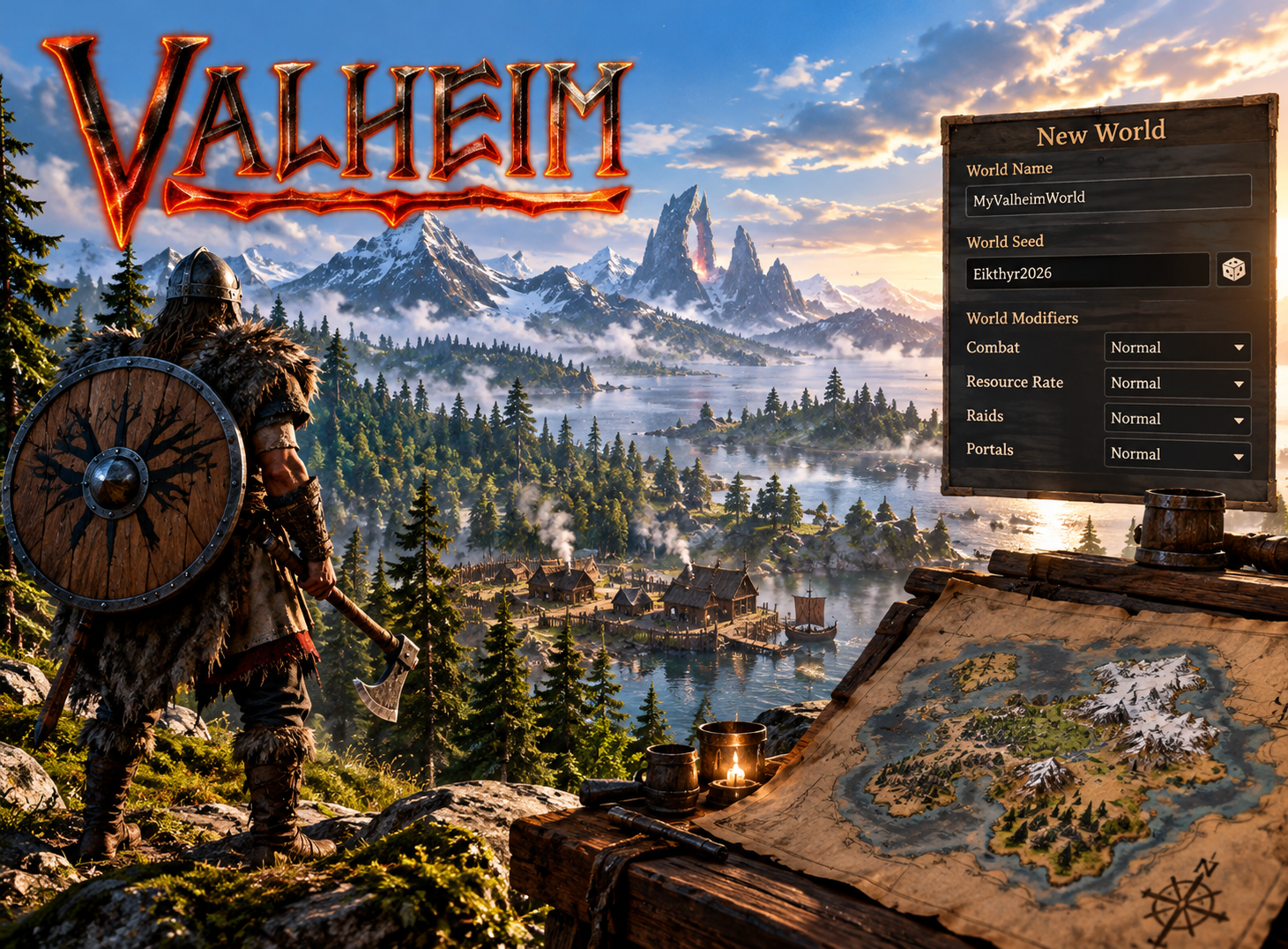
Every Valheim world has a seed that influences the world it generates. A seed is useful when you want a particular starting geography, are exploring a recommended map with friends, or simply want to begin a different adventure. On a MaximusHost Valheim server, world creation and server settings are deliberately separate so that changing a password cannot accidentally switch your save.
A seed is a creation-time choice. Combat difficulty, resource rates, raids, and several other world rules are different: you can configure those rules for the selected world and, within Valheim’s restrictions, revisit them later.
What does a Valheim world seed do?
A world seed is a short string used by Valheim’s terrain-generation process. Players who use a matching seed and compatible generation rules can expect comparable geography, but game updates and the version used to generate a world also matter.
Once a world has generated and saved its terrain, replacing the seed text is not a safe way to reshape the existing world. If you want a fundamentally different map, create a separate world. A new seed does not reset the original world’s structures or save files; it selects a different world identity.
A useful practice is to record the desired seed and the Valheim version used during first generation. If you found a promising seed in a community map viewer, confirm that the viewer supports your game’s generation version before expecting every location to match.
Create a world with a random seed
Open your Valheim server’s Worlds tab. Stop the server, then enter a name under Create a fresh world. Leave World seed set to Random (default) and select Create & select.
This reserves the world selection. The dedicated server generates the new terrain and save files when it next starts; the web action itself does not instantly create a completed map.
Wait for startup and save completion, then return to Worlds to confirm the generated world is listed. Keep any previous world stored so that you can switch back. You do not need to purchase another server simply to hold a second world on the same server.
Create a world with a custom seed
In the same Create section, choose Use a custom seed. Enter a case-sensitive seed containing 1–10 letters or numbers. For custom-seed generation, MaximusHost currently limits the world name to 1–20 letters, numbers, underscores, or hyphens to match its metadata-creation contract.
Confirm the action while the server is stopped. MaximusHost prepares metadata for the requested seed, and Valheim generates the playable world on its next start. Do not treat the creation button alone as proof that the map has been generated correctly.
After first start, verify the selected world and expected seed in the game or authoritative world metadata before investing hours in building. Particularly after a major Valheim update, test a disposable world first if exact seed geography matters. The custom-seed path relies on supported MaximusHost world preparation plus the running Valheim build; your acceptance test matters more than a screenshot of a form.
Switch safely between existing worlds
The Worlds tab scans the server’s saved worlds. The selected world is shown separately from stored alternatives. Stop the server, back up the important save, then choose Select world on another complete world and start the server again.
Selecting a world is not renaming, merging, or restoring the old one. Buildings, terrain edits, bosses, and discovered places stay with their respective world saves. Valheim characters are generally managed separately by the game client, which is why a familiar character may enter a world that has no explored map or buildings.
The world list may show an incomplete save or pending generation. An incomplete or partially uploaded save should not be treated as a safe selection. Resolve the file problem or complete generation rather than forcing a start against a broken world.
World-only archive import is separate from the full-server Backups tab. Imported saves are added as stored worlds; importing should not silently replace or select a world. Use the manager’s actual controls and their warnings.
Which world settings can change later?
Open Properties → Settings for the launch configuration. Presets such as Normal, Casual, Hard, Hardcore, Immersive, and Hammer can adjust how the game plays. Individual fields can override combat, death penalty, resources, raids, and portals.
These are gameplay rules, not different world seeds. Use Save for next restart to write them without restarting immediately, or Save & restart now to queue a restart and watch the Console overlay. Check the effective behavior after the game starts rather than assuming a form selection instantly changes an existing session.
Importantly, MaximusHost’s settings currently follow the server, not separate profiles per saved world. If you use one world for a casual group and another for a harder challenge, review and save the intended settings whenever you switch.
A preset can influence multiple fields at once. When changing a preset, review individual modifiers too, so the resulting combination matches the experience you intend.
Understand No Map and other world keys
Valheim includes special world keys such as No Map, Passive Mobs, No Build Cost, and Player-Based Events. In the MaximusHost Settings form these are visible as checkboxes, but persistent world keys require special care.
Configure the desired initial state before the first start for a fresh world whenever practical. On an existing world, removing a launch argument may not remove a rule already stored in its save. Some transitions require Valheim’s administrative commands or a deliberate reset of world modifiers.
This is different from switching a simple server listing value. Before changing an established world, make a backup, record the current rule combination, change one thing, restart, and test it in the game. Do not promise friends a reversible “Hardcore to Casual” toggle without first checking the actual result.
For background on the controls and safe ordering, use the Worlds and Settings wiki guide.
What if the new world looks wrong?
If a custom seed produces unexpected geography, verify the exact case and characters in the requested seed and check the game’s world generation version. Also confirm you selected the intended save before starting. A server name shown in the browser is not the same as a world save name.
If the familiar world seems missing after a switch, stop the server before doing anything destructive. Reopen Worlds, select the previous complete save, and restart. The manager should preserve existing worlds; changing the selection is not intended to delete them.
If you believe data has been changed or corrupted, use Valheim backup and restoration guidance before experimenting further. A controlled recovery is safer than repeatedly starting a partially imported save.
Next steps
For initial provisioning and connection instructions, read How to set up and join a Valheim server. For performance planning, see Valheim server RAM and CPU. Explore the Valheim server hosting overview to compare options and find the current creation route.