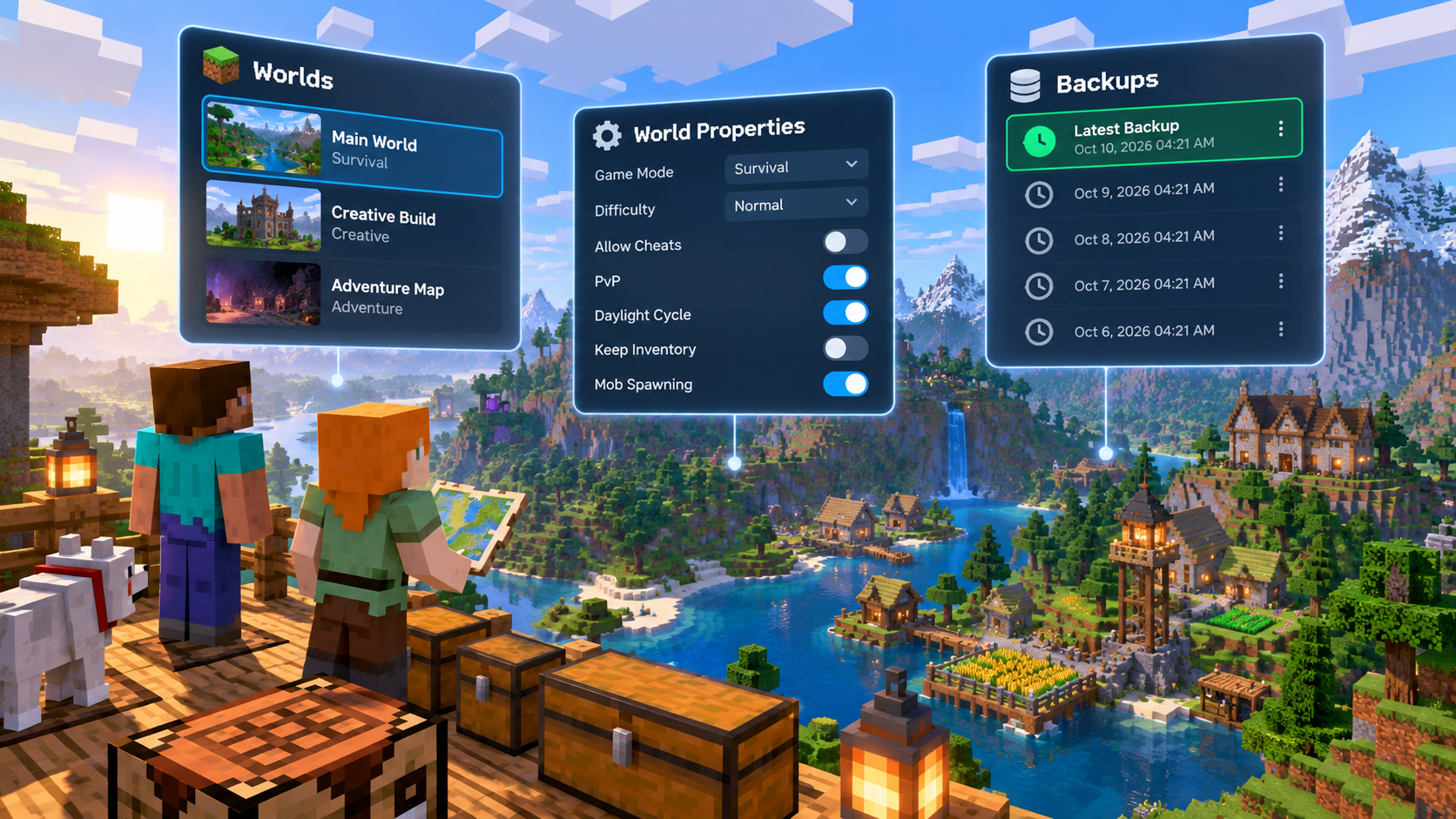
The world is the important part of a Bedrock server. A property change can alter how it plays; a version change can affect client access; and a level-name change can select a different save. Use the manager’s controls with a short record and a backup so you can identify what changed if the group sees an unexpected result.
Understand properties before editing
The Bedrock Overview and Properties tabs expose supported configuration controls. Game mode and difficulty are common options; Properties also includes the allow-list privacy setting, view distance, tick distance, level name, and other supported fields. The PvP switch in Overview and the separately saved World Gameplay → PvP switch in Properties control the active world's game rule, not a `server.properties` field. The server must be running to change PvP; MaximusHost reads back the rule before reporting that it was saved. PvP persists with the world through normal restarts and may differ when switching worlds. Advanced fields can alter server behavior, so change them deliberately. The Properties documentation explains the current controls.
Some choices are easy to confuse. View distance affects terrain presented to players; tick distance affects how far activity continues simulating. Both can influence resource demand. The level name is not just a display label: changing it can load or create another world. For privacy, `allow-list=false` permits compatible authenticated players to join without an invitation, while `allow-list=true` limits entry to names in `allowlist.json`; an enabled, empty list rejects everyone. New MaximusHost Bedrock servers default to allow-list off, but owners can enable it. Keep `online-mode` authentication enabled, and write down your original settings before editing.
Prepare before a world or version change
Backups can be managed by the server owner and, where explicitly granted, a shared user with manage_backups permission. This is separate from permission to edit Properties. Before changing a mature world, importing content, switching versions, or experimenting with significant properties:
- Tell players when the change will happen and whether they should avoid joining.
- Record the current server version, active level name, and relevant settings.
- As the owner or a collaborator authorized to manage backups, use the manager’s Backups area to create a recovery point.
- Make one planned change and note the time.
- Rejoin with a compatible client and verify the intended world and rules.
The Backups documentation describes the current manager path. A backup helps provide a known point to return to, but it does not guarantee that every issue or incompatible change can be recovered automatically.
Creating a backup can queue an asynchronous job. Verify that the backup actually completed and appears in the manager before changing the world; a queued message is not completion evidence. Do not start a version change while a backup is still processing. Keep a note of which Bedrock version and level name were active when you took it; that context matters if you later need to decide whether the saved copy matches the current server files. If you are unsure which backup contains the group’s latest progress, pause the change and check before proceeding rather than guessing.
Change one thing at a time
Avoid changing the version, level name, distance settings, resource allocation, and add-ons in one maintenance session. If something breaks, you will not know which change caused it. Start with the highest-confidence fix, save it, restart only if the manager or game requires it, then test again. When you save ordinary Bedrock Properties, “sync queued” does not mean the game has applied the setting. Give the node synchronization job time to finish, check server files or Console & Logs if changes appear missing, and verify after any required restart. A queue acknowledgment by itself is not proof that the live server applied the change. PvP is different: its own control must confirm the live gamerule while the server is running.
For distance settings, test with a player moving through the same areas and using the same farms. For gameplay settings, test the actual rule in game. For version changes, verify that the clients joining the server can run the selected version before making the new version the group default.
Troubleshoot a missing or unexpected world
If the group sees a fresh world or the wrong world, stop making additional changes. Check the active level name and the last change recorded. Review console output, then use the supported backup workflow if you need to return to a known point. Do not delete files or rename saves based on a guess; preserve the current state until the owner has identified the intended save.
If players cannot join after a version change, compare the server’s selected version with each client before changing world data. With current Bedrock 1.26.50+ NetherNet networking, use the TCP signaling port displayed in Overview → Connection Addresses. MaximusHost assigns and manages the UDP gameplay range; players do not enter that range. If Minecraft says “You're not invited to play on this server”, check `allow-list` and `allowlist.json` rather than assuming networking failed. If settings appear not to apply, distinguish queued synchronization from completed application and check whether a restart is required. The Overview documentation and Console guide cover manager status and logs.
When troubleshooting a world issue, separate access from world state. First confirm a compatible client can reach the server. Then confirm the intended level name loaded and the expected rules are active. If the world is correct but a property is wrong, fix that property; if the wrong save loaded, stop and investigate the level name or recovery point. This sequence limits extra writes to a world while you diagnose it.
Keep permissions and records clear
Shared users can edit supported properties only when granted edit_properties; Bedrock backup actions also accept the distinct manage_backups permission. Grant either only when needed, since restoring a backup can replace current world data. Do not assume every collaborator has backup access. Keep a brief change record containing the date, backup name or time, previous value, new value, and test result. This makes routine administration less dependent on memory.
For current resource choices and estimates, use Minecraft Bedrock hosting. This workflow is specific to Bedrock and does not make Java worlds or clients interchangeable with Bedrock.