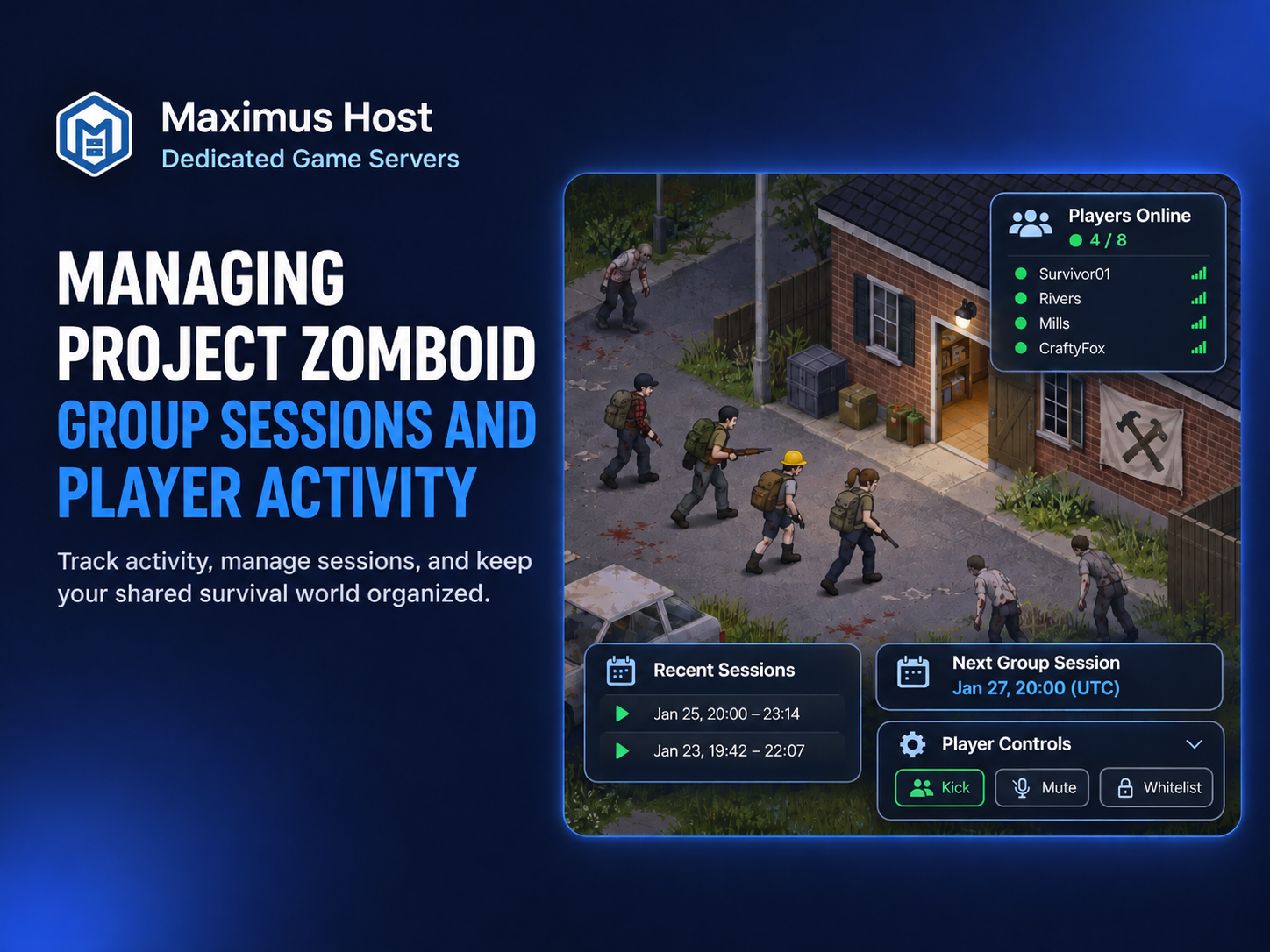
A shared Project Zomboid world can keep a group together across many sessions. A little coordination around invitations, server time, and changes helps everyone know what to expect when they return.
Make joining straightforward
Share the Game address from your server card and, if configured, the join password through a private channel. Players create their own in-game accounts; those credentials and the join password are separate from the server administrator password. If a friend cannot join, check the server status and work through the connection guide.
Check activity and moderate when needed
The Players area shows confirmed online sessions, known players, recent sessions, and playtime based on game events. Player actions include kick, ban, and unban; changing administrator status is restricted to the game server owner.
Agree on group rules before using moderation. Check the player name and the action carefully before confirming. For the surrounding controls, see manage your server.
Plan the next session
Owners can use Schedule to plan start and stop times. They can also enable Idle Auto-Shutdown after a chosen period with no players. This is separate from the game setting that pauses game time when empty. Stopped-server storage may still incur charges, so check billing and credits.
Protect the group’s progress
Before adding Workshop items or changing important settings, tell players, stop the server when required, and create a backup. Make one change at a time so it is easier to identify a problem. Restoring an older backup replaces current server data and can remove later progress. Follow the backup guide and Workshop guide for the details.
For resource choices and current estimates, see Project Zomboid hosting and RAM, CPU, and pricing.