

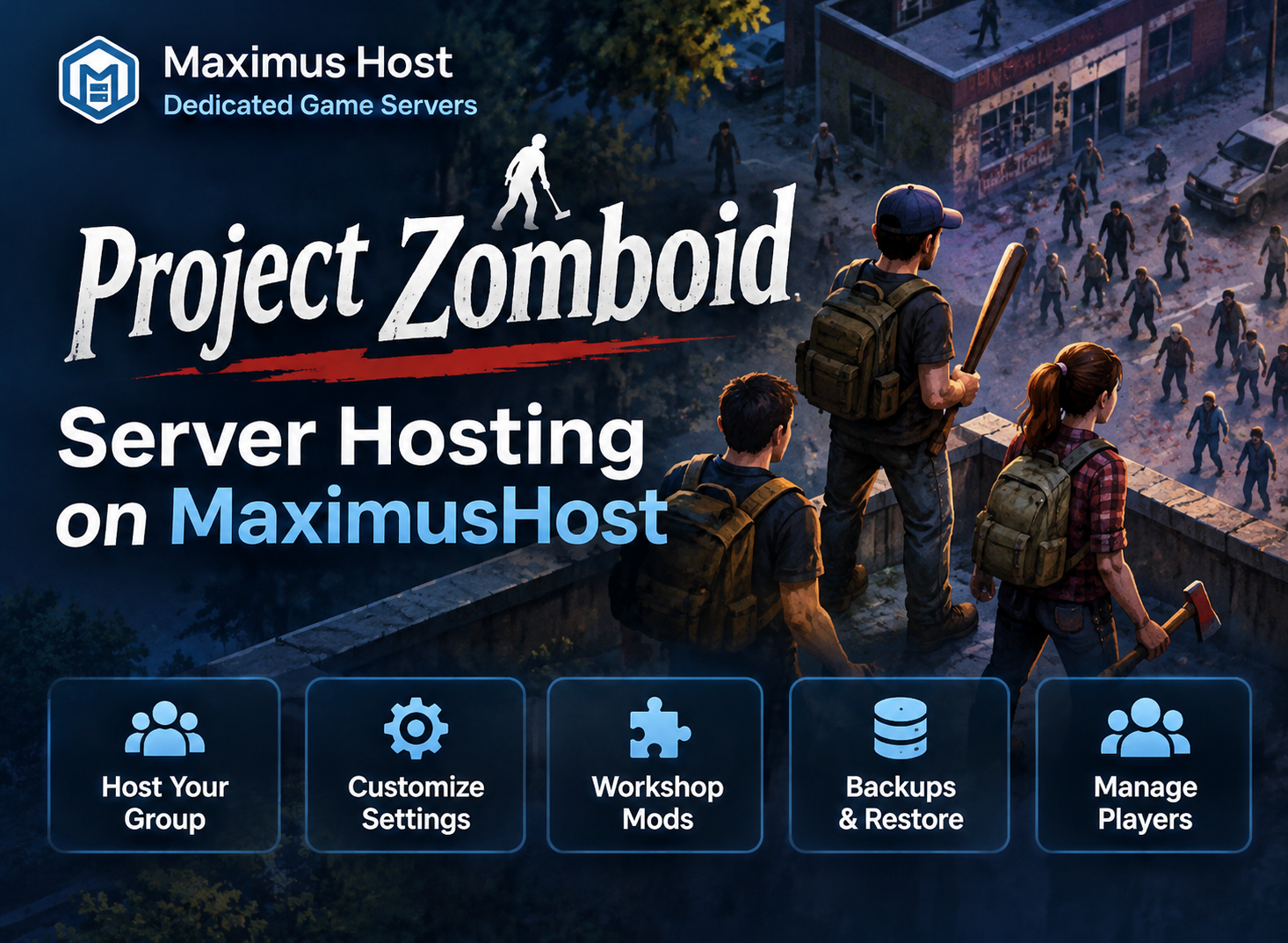
Surviving Knox Country is better with a group. A dedicated Project Zomboid server gives your friends a shared world to explore, build in, and return to when the next session begins.
With MaximusHost, you can choose server resources for your group and manage the day-to-day controls from your account. Start or stop the server, follow its latest console output, adjust supported server settings, manage Steam Workshop items, and create backups before major changes.
Set up a server for your group
From My Servers, open Create New Server and choose Project Zomboid. Select a server location, choose RAM and CPU, and enter the required administrator password. The form shows the resources available to your account and the current hourly runtime rate before you create the server.
Project Zomboid servers currently offer 8–16 GB RAM and 1–6 vCPU. We recommend starting with 8–12 GB RAM and 2–4 vCPU, then checking resource use during a typical session. New servers have a one-time 50-credit creation fee. New servers use standard credit billing. Existing designated free beta servers retain their exemption for eligible Founder and Premium owners; no new free beta server waiver is granted. See Billing & Credits for current terms.
Manage the world and player access
Open your server from My Servers to reach its management page. In Settings, set the public server name and description, choose whether to show it in the public browser, set a player limit, and manage the optional join password. You can also configure PvP, pausing when the server is empty, and whether new player accounts are allowed. A searchable editor offers selected advanced server settings; stop the server before saving changes.
Use Players to review confirmed activity and available moderation actions. Owners can schedule server sessions or enable idle auto-shutdown after a chosen empty period. Use the Console tab to follow server output and review recent messages in the Console & Logs panel. The Backups tab lets you create or download a backup and restore an earlier server state. A restore replaces current server data, so progress made after that backup may be lost.
The Mods area accepts Steam Workshop items. Project Zomboid mod management is experimental: MaximusHost does not verify that a Workshop item is compatible with the server’s installed game build. Check each item’s requirements and create a backup before making major mod changes.
Connect and keep playing
Copy the Game address from your server card in My Servers and share it with your group. Players can add it from Project Zomboid’s Join screen. If you enable a join password, share that password privately; it is separate from the administrator password used when the server was created.
Eligible MaximusHost accounts can create new servers under standard credit billing; check the creation form for your available resources and current estimate. For help with setup, read the Project Zomboid server guide, then explore the MaximusHost Project Zomboid hosting overview and its guides for connecting, settings, Workshop mods, backups, and troubleshooting.