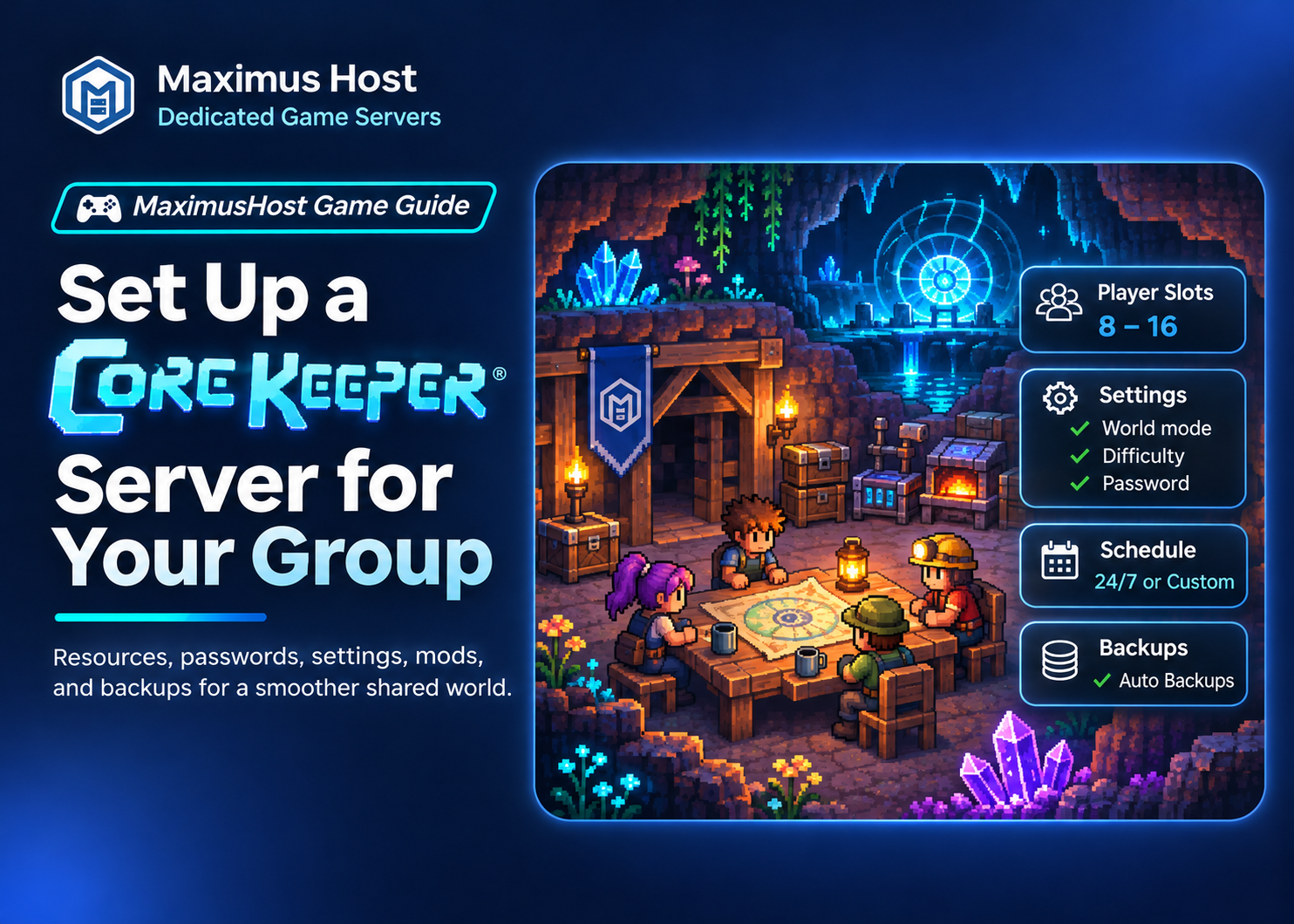
A dedicated Core Keeper server gives your group a persistent place to play without depending on one person to host each session. Players can return to the same world when the server is running, while the owner manages settings, access, and backups from the hosting dashboard.
Choose resources for your group
The MaximusHost creation form currently offers 2–12 GB RAM and 1–4 vCPU. For a small group, 4–6 GB RAM and 2–3 vCPU is a reasonable starting range. It is guidance, not a guaranteed capacity: world activity, player behavior, and mods affect demand. Check the live form for the options available to your account and review resource use during a typical session.
The form shows a running credit estimate from your selected resources and expected runtime. A new server has a one-time 50-credit creation fee. Storage may continue to incur charges while stopped, so check the live estimate and your account billing details rather than treating a stopped server as free.
Create and start the server
- Open My Servers → Create New Server and choose Core Keeper.
- Enter a recognizable server name, choose a location, and select resources.
- Review the live estimate and creation fee, then submit the form.
- Wait for setup to finish. Open the server’s management page and start it when its status indicates it is ready.
For the current setup details, see Create a Core Keeper Server and Core Keeper hosting.
Set up your world
Use Settings to configure the world name, mode, seed, maximum players, season option, platform restriction, and direct-connect password. Stop the server before saving Core Keeper settings, then start it to apply the saved launch configuration.
A seed applies when a new world is generated; it does not regenerate an existing world. Choose the world mode before creating the world because changing between Creative and a non-Creative mode on an existing world is not supported. Platform restriction can limit joining to a selected PC storefront. The supported PC stores can connect through direct IP when the restriction allows them; PC-to-console cross-play is not supported. See Settings and World Options.
Join using the Overview connection string
When the server is running, open Overview and use its connection-string copy action. The string has this form:
PUBLIC_IP;EXTERNAL_PORT;;PASSWORD
Open Core Keeper, choose Join Game via IP, and paste the connection string copied from your MaximusHost Overview. It uses a numeric public IP, the allocated external UDP port, and the direct-connect password. Do not substitute a hostname or Steam Game ID; those joining methods are not supported.
Share the connection string only with the people you invite, preferably through a private channel. The password limits access to people who have the current details. The owner can also grant selected Discord users the private Get Password permission. See Join and Invite Friends.
Backups and mod considerations
Make a full-server backup before major settings changes or mod changes. Manual mod ZIP management is available, but each player must install compatible matching mod versions on their own computer. Client files are not synchronized, and a working upload does not guarantee that every third-party mod is compatible. See Install and Manage Core Keeper Mods and Backups and Restore.
A full-server restore can replace newer world progress, settings, and installed mods. Confirm the backup date before restoring. Dashboard world-only import/export and world-slot switching are not available; see World Management.
Common setup mistakes
- Copying only the IP and forgetting the external port or password. Use the full Overview connection string.
- Trying a hostname or Steam Game ID instead of Join Game via IP.
- Saving settings while the server is running. Stop it first, save, then start it again.
- Expecting a seed to change an existing world.
- Assuming a mod ZIP is automatically installed on each player’s client.
- Restoring an older backup without considering that newer world, settings, and mod state may be replaced.
Check Troubleshooting if setup or joining does not work, and Resources and Credit Pricing for billing guidance.